User guide · Back to the basics
The same speaking time for both sides
Follow the current speaker’s remaining time from separate lecterns. The moderator controls one shared timer on both devices.
Can we see the time from our own places?
Agree on three minutes each. Place a phone or tablet at each lectern, facing its user.
Find it on the actual screen
These screenshots show a closed demo room. Use the QR code and links from your own room.
Open the participant link for this room.
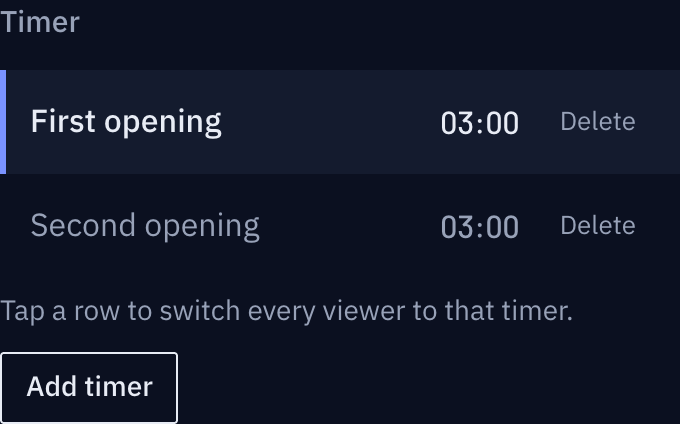
The moderator prepares two turns on their laptop. Both devices keep the same participant link open. Do not share the host link.
Find it on the actual screen
These screenshots show a closed demo room. Use the QR code and links from your own room.
I can see the time from here.
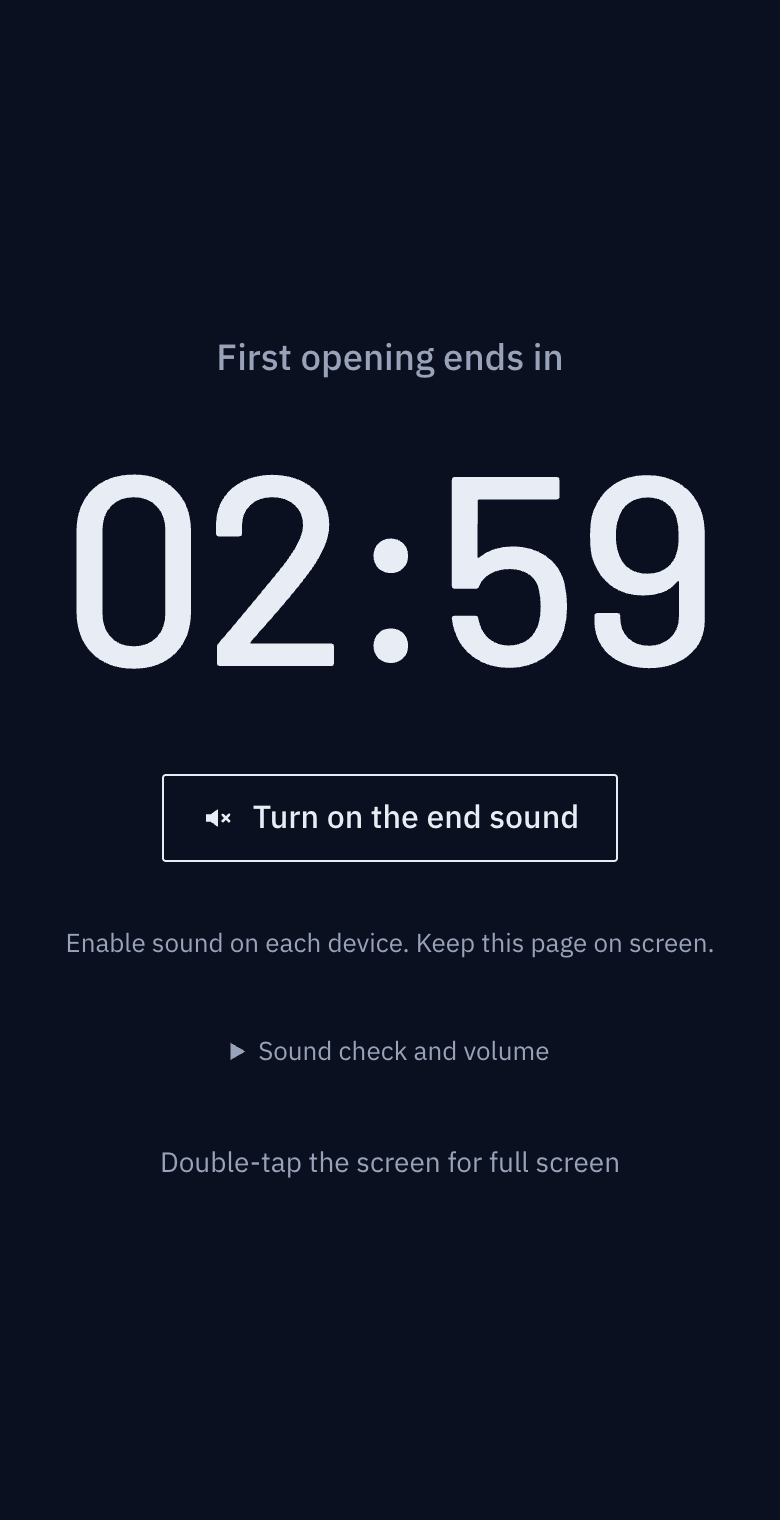
The moderator selects and starts the first timer. Both screens show the current speaker’s remaining time: 02:30.
Find it on the actual screen
These screenshots show a closed demo room. Use the QR code and links from your own room.
I’ll select and start the next speaker’s timer.
Stop the previous timer, then select and start the next one. Both screens change to 03:00 without reopening the link.
Find it on the actual screen
These screenshots show a closed demo room. Use the QR code and links from your own room.
The illustrations show the situation. Expand the section below each panel to see the actual buttons and screens.
Before the next turn
Selecting a timer does not start it. Stop the previous timer, check the next timer’s name and duration, then press Start.
Run a debate with fair speaking times
Visible time helps a moderator focus on the discussion. Use TimerRoom to separate opening statements, questions and rebuttals while everyone sees the same remaining time.
Agree on the rules first
Decide the time allocation, whether questions stop the clock, and how to handle speech after time expires. This schedule is an example for a class, not an official competition format. Follow the organizer's rules at an actual tournament.
| Stage | Example time | How to run it |
|---|---|---|
| Affirmative opening | 3 minutes | Start when the speaker begins |
| Negative opening | 3 minutes | Use the same conditions |
| Mutual questions | 4 minutes | Include questions and answers |
| Preparation | 2 minutes | Both teams prepare together |
| Closing statements | 2 minutes each | Reset before each speaker |
A room supports up to 20 timers. Create one for each stage or reset and reuse timers of the same length. Use one shared timer for simultaneous preparation.
Separate the moderator and audience screens
- Create a shared timer with the first stage's duration.
- Add timers on the host screen and give each a stage name.
- Share only the participant link or QR with participants. Keep the host link with the moderator.
- Open the same room’s participant link on a phone or tablet at each lectern, facing its user. Every participant screen follows the one selected timer; keep the link open when changing turns.
- Select the stage and press start. Selecting a timer does not start it automatically.
Other timers keep running when you switch the displayed timer. Pause or reset a finished stage first. Do not start the next timer before its speaker is ready.
Handle interruptions and overtime
Pause for a microphone failure or another agreed interruption. Resume continues from the remaining time. Tell both teams when you adjust the time so the same rule applies to everyone.
At zero, the screen indicates that time is up and continues into overtime. Each viewer must enable sound on their own device, so sound alone is not a reliable signal. The moderator should announce the end using the agreed procedure.
Move to the next round
Select the next timer and check its name and duration. If reusing a timer, reset it before starting. A short message can tell participants whose turn is next.
Prepare for connection problems
The screen shows a reconnecting notice after a connection loss. Check that the moderator and audience displays agree again before resuming. For an important event, prepare a backup clock and an interruption rule. Rooms are not permanent records. Create a new room for a new event and store the host link safely.
After using a shared device
Open My timers → Device storage settings on the home page to turn off saving or clear all saved host access. Access expires 24 hours after its first save by default; 1 hour and 7 days are also available. Visits do not extend retention. If the browser is closed, cleanup runs on the next visit. Increasing retention does not extend existing entries. Turn off saving on shared PCs.
Forget on this device removes only the selected room's saved access; it does not close the room. Use Close room when the event is over. Names, type icons, codes, last-used times and auto-delete times help distinguish saved rooms.