Learn with comic guides
Choose one of 8 stories for your situation. Expand the instructions inside each comic when you need them.
Quick written instructions ↓The classroom timer is behind the speaker. What if the same timer could sit right in front of them?
The talk is in progress, but the next speaker backstage cannot see how much time remains.
Keep the presentation visible while everyone follows the same timer in a separate window.
The activity has already started. Join the same timer without waiting for the facilitator.
Follow the current speaker’s remaining time from separate lecterns. The moderator controls one shared timer on both devices.
Control the timer from the exam office while each room follows its front display. Follow the invigilator’s start and finish instructions.
Follow the same remaining time from separate homes, even with meeting cameras off. One person hosts this session.
During practice, keep a timer beside your slides. At the event, let the host operate it while you focus on speaking.
Quick written instructions
Expand just the topic you need.
Host: create and share a room
- Choose a timer type and duration on the home page, then create a room.
- Share the participant link or QR from Invite participants. Keep the host link private.
- Start when participants are ready. After the gathering, close the room from Room settings.
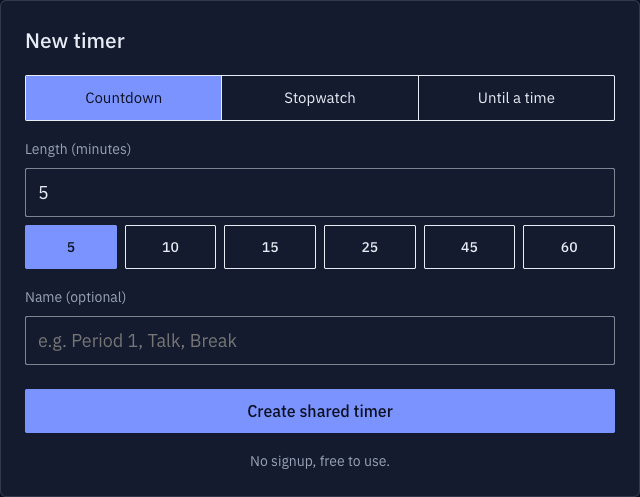
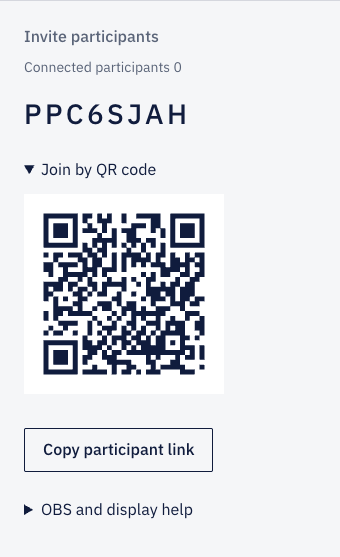
These are test captures. Join with your own link and QR. The saved list uses sample data.
Participant: join with a link or QR
- Open the participant link or scan the QR with your camera.
- Keep the screen awake to follow the timer. The host controls starting and pausing.
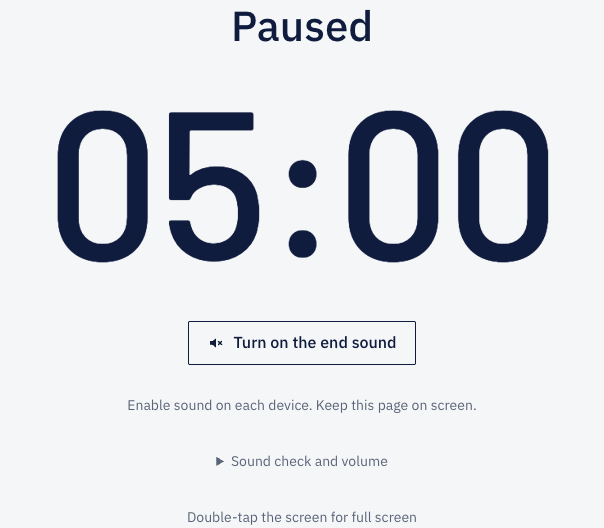
These are test captures. Join with your own link and QR. The saved list uses sample data.
Enable and check the end sound
- Enable the end sound on the participant screen. Do this on each device.
- Try the sound preview and volume settings. If silent, check device volume and silent mode.
- Sound is not guaranteed with the screen locked or another app in use.
Reopen a saved timer
- Use My timers on the home page in the same browser to resume.
- Saved access does not sync between devices. Turn saving off or clear it on shared devices.
- Create a new room if saved access has expired or the room has closed.
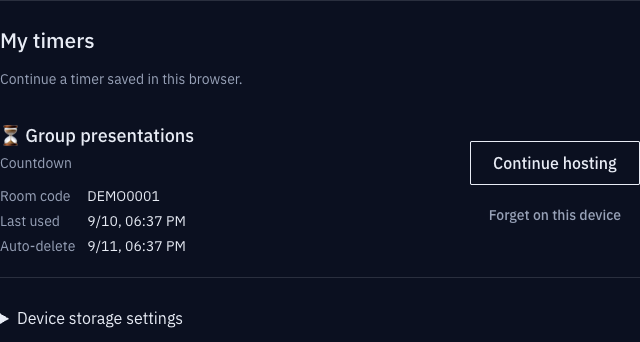
These are test captures. Join with your own link and QR. The saved list uses sample data.