User guide · Back to the basics
Rehearse with the time in sight
During practice, keep a timer beside your slides. At the event, let the host operate it while you focus on speaking.
I finished reading. How long was that?
Reading notes while seated is different from presenting. Put the remaining time where you can see it.
Find it on the actual screen
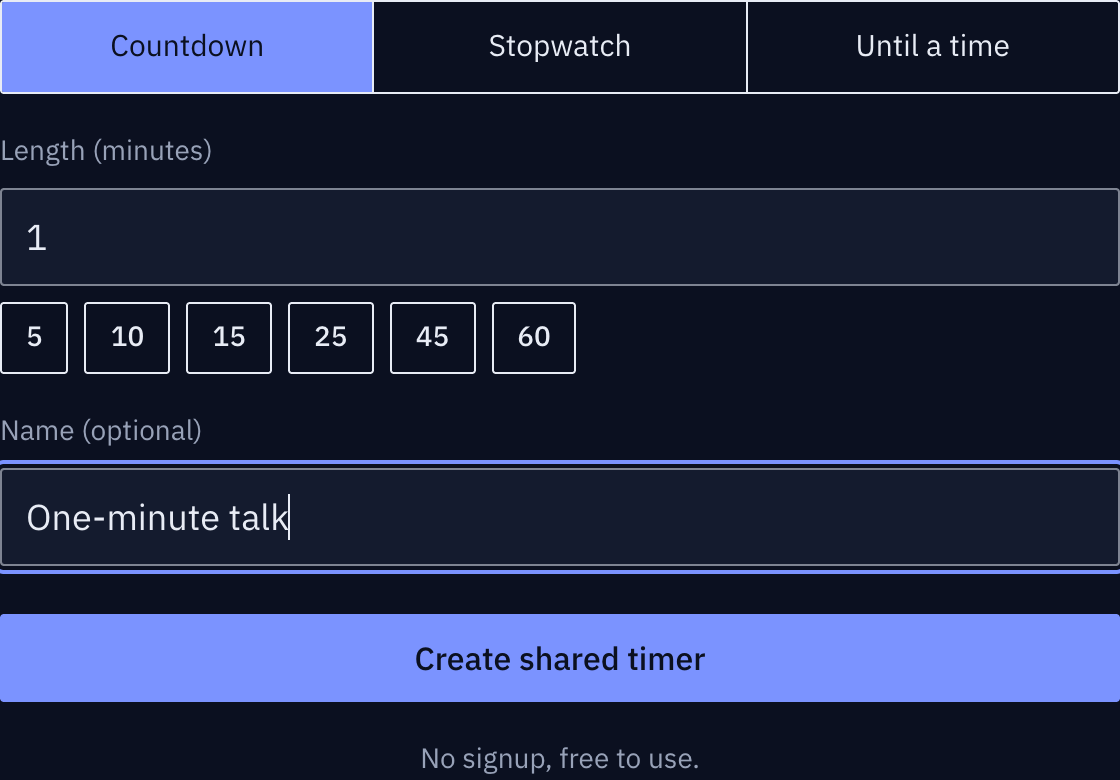
These screenshots show a closed demo room. Use the QR code and links from your own room.
Stand up, speak and keep the time in sight.
Start from the computer, then stand up to present. A phone beside the slides shows the same time through the participant link.
Find it on the actual screen
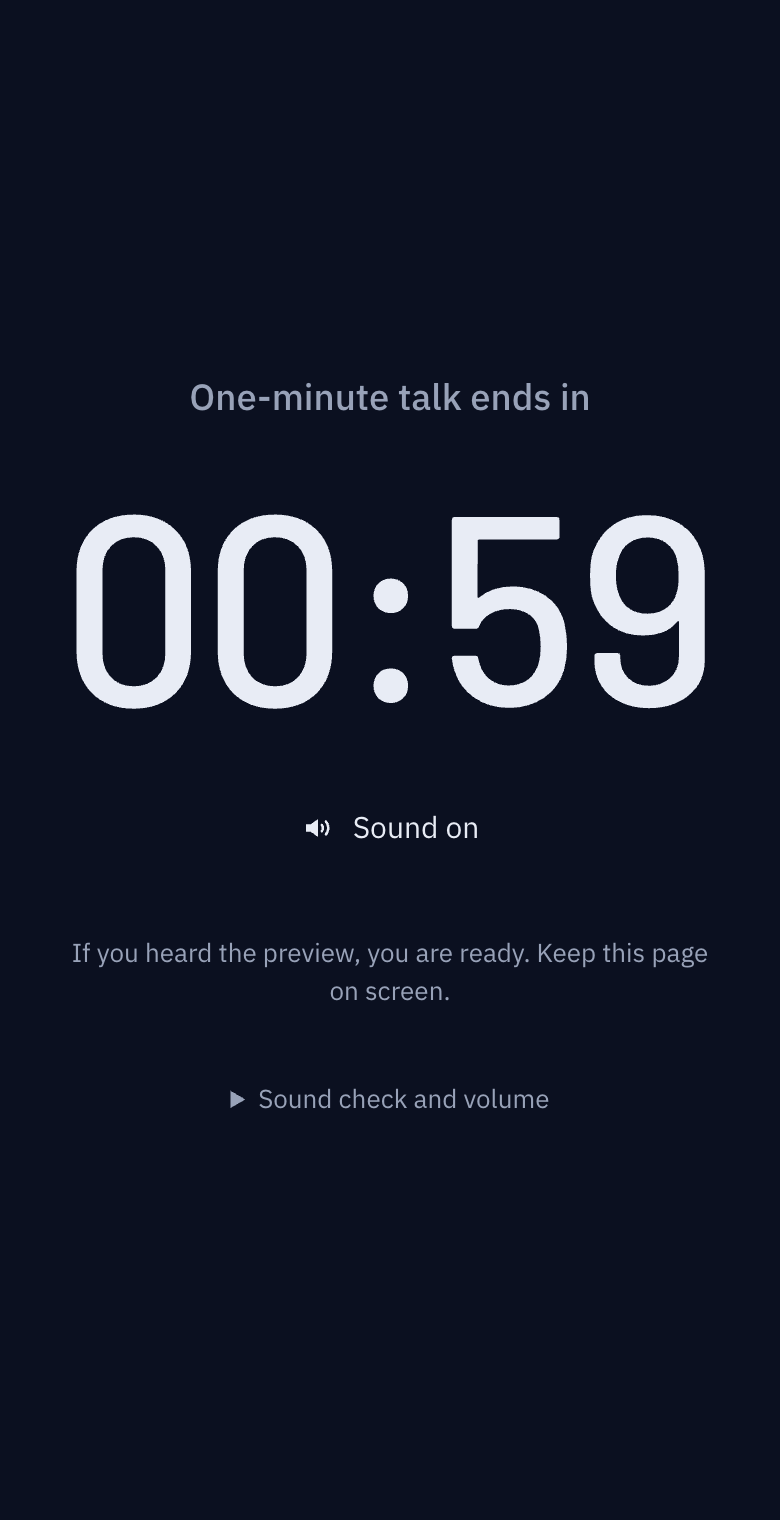
These screenshots show a closed demo room. Use the QR code and links from your own room.
I’ll note the overtime and try again.
Finish speaking, then write down the overtime. Decide what to shorten before the next rehearsal.
Find it on the actual screen
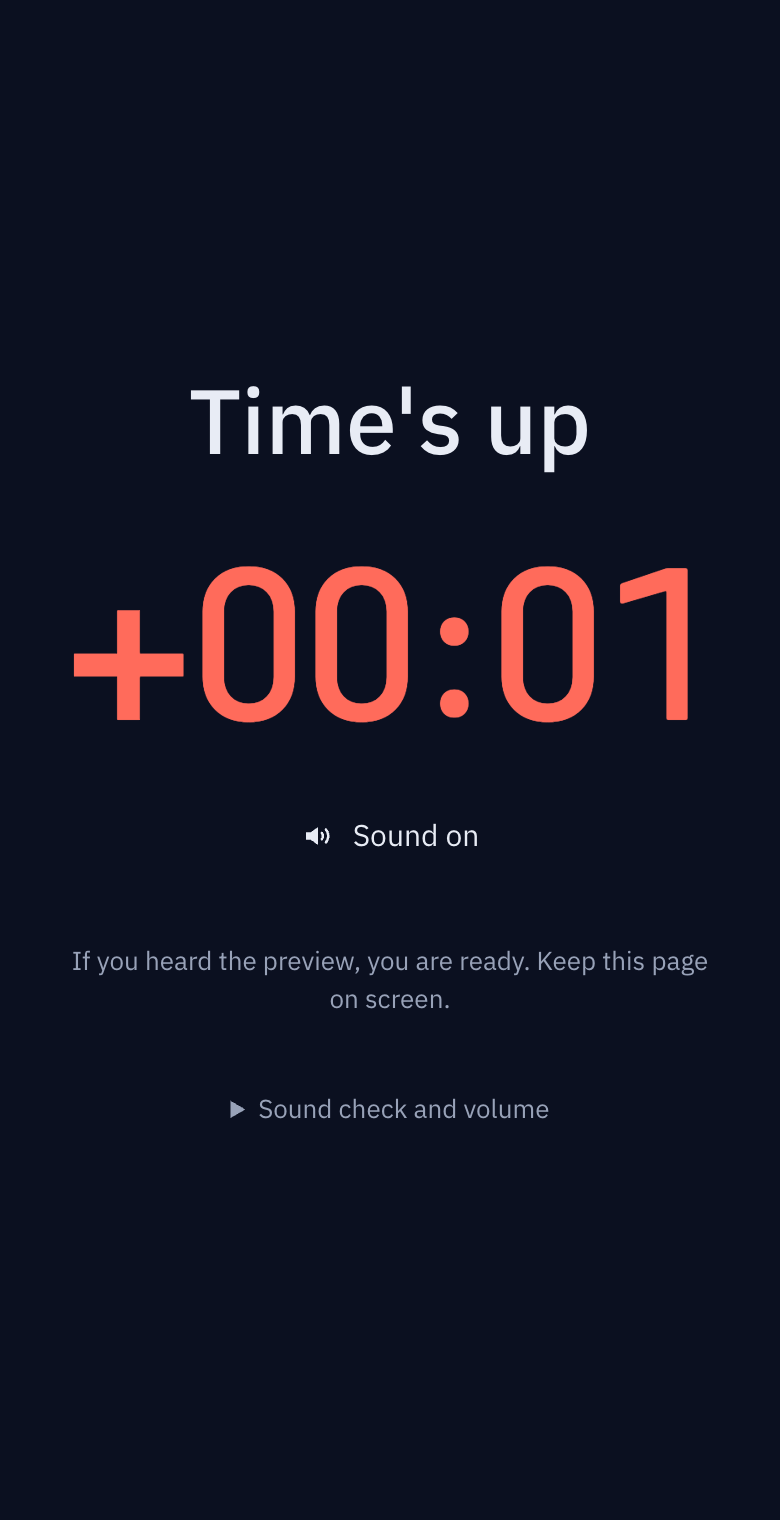
These screenshots show a closed demo room. Use the QR code and links from your own room.
I’ll control the timer at the event.
When the host starts, the lectern display follows. The presenter and host see the same remaining time from separate places.
Find it on the actual screen
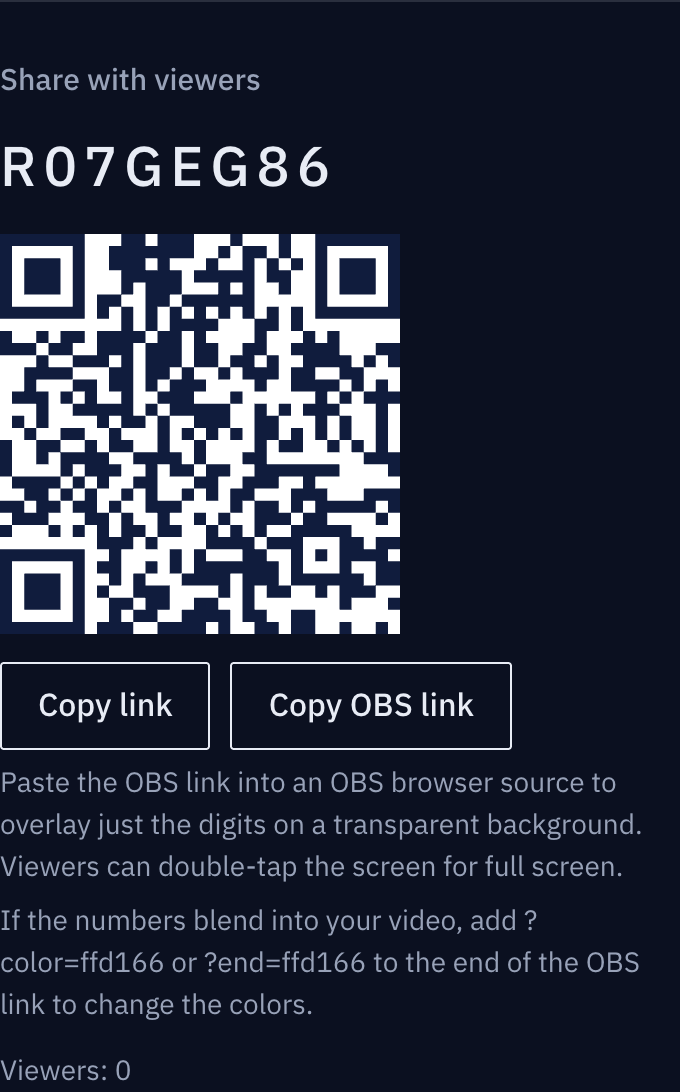
These screenshots show a closed demo room. Use the QR code and links from your own room.
The illustrations show the situation. Expand the section below each panel to see the actual buttons and screens.
Repeat and prepare for the event
Write down the overtime and rehearse again. Practice records are not saved automatically. At the event, give the host the host link and open the participant link on the presenter’s device.
Presentation practice — building a feel for finishing in three minutes
Talks run long not because there is too much to say, but because the speaker does not know how many minutes have passed. Practise with the remaining time in front of you, and on the day let the speaker and the moderator watch the same screen.
Why three minutes in practice becomes five on the day
- In practice you sit and read quickly; on the day you stand and speak to people. Speech slows by 20 to 30 percent
- In practice you choose when to start; on the day the moderator announces it and a few seconds pass before the first sentence
- In practice you stop at "about three minutes"; on the day you rush the last slide
There is one fix. Practise as on the day, watching the remaining time.
Practising alone
- Create a room and the timers in the real order: "Talk 3", "Questions 2".
- Open the participant link on your phone and stand it next to your slides, just below eye level, where the phone will sit on the day.
- Press start on the host screen on your computer, stand up and speak. Start with "hello" as you would for real.
- At zero the digits turn red and the overtime climbs. Do not stop; finish, then write down how many seconds over you were. That number is the target for the next run.
- Do the same talk three times. First run: over. Second: decide what to cut. Third: land it. To start over, long-press [Reset].
If you are more than 30 seconds over, tightening sentences will not fix it. Dropping a slide is faster.
To find which part drags, practise once with a timer per section, such as "Problem 0:30", "Core 1:30", "Wrap-up 1:00". The section that runs over is obvious. On the day, use one timer.
Team talks and interview answers
- For a team talk, create a timer per person in order: "A 2", "B 2", "Questions 3". One person keeps the host link and starts the next timer at each handover. With the same timer on everyone's screen, each person knows how much of their turn is left. Handover gaps are time too; include them in practice.
- Interview answers ("1-minute introduction", "2-minute answer") work the same way, except the timer starts after the question. Have your practice partner press start after reading it.
On the day
Two things change.
- The moderator controls the timer. The speaker only watches the participant link on their phone or the lectern tablet. When the moderator presses start, the speaker's screen moves with it. If extensions are allowed, the moderator's [+1 min] appears on the speaker's screen at once.
- Decide whether the audience sees it. In a competition or a class presentation, letting the audience see the remaining time is fair. For a sales pitch or an interview, keep it on the speaker's phone only. Screen roles are in the help page.
Common problems
The phone screen turns off mid-talk. The participant screen asks the device to stay awake while the timer runs, but device settings can override it. Check once in practice; if it turns off, lengthen the auto-lock time.
I want to keep practice records. The timer does not store history. Read the overtime off the screen and note it down; that is the simplest way.
Checklist
- A timer with the real talk length exists
- You practised standing, with the phone where it will be on the day
- You wrote down the overtime and repeated three times
- On the day the moderator has the host link and you have the participant link