User guide · Back to the basics
One timer for the whole classroom
The classroom timer is behind the speaker. What if the same timer could sit right in front of them?
How much time do I have left?
The audience can see the classroom display, but the speaker keeps turning around to check the time.
Find it on the actual screen
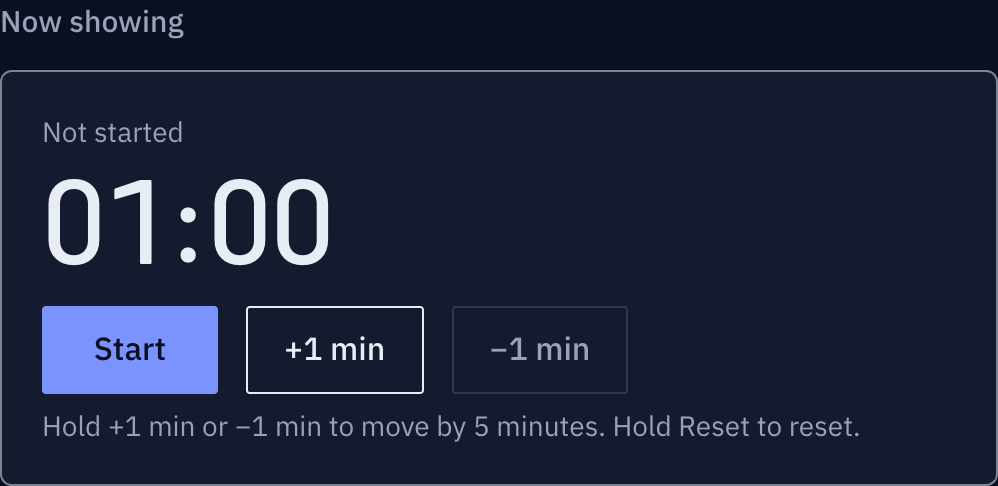
These screenshots show a closed demo room. Use the QR code and links from your own room.
You can see it in front of you, too.
The presenter scans the viewer QR code on the teacher’s laptop with his own phone.
Find it on the actual screen
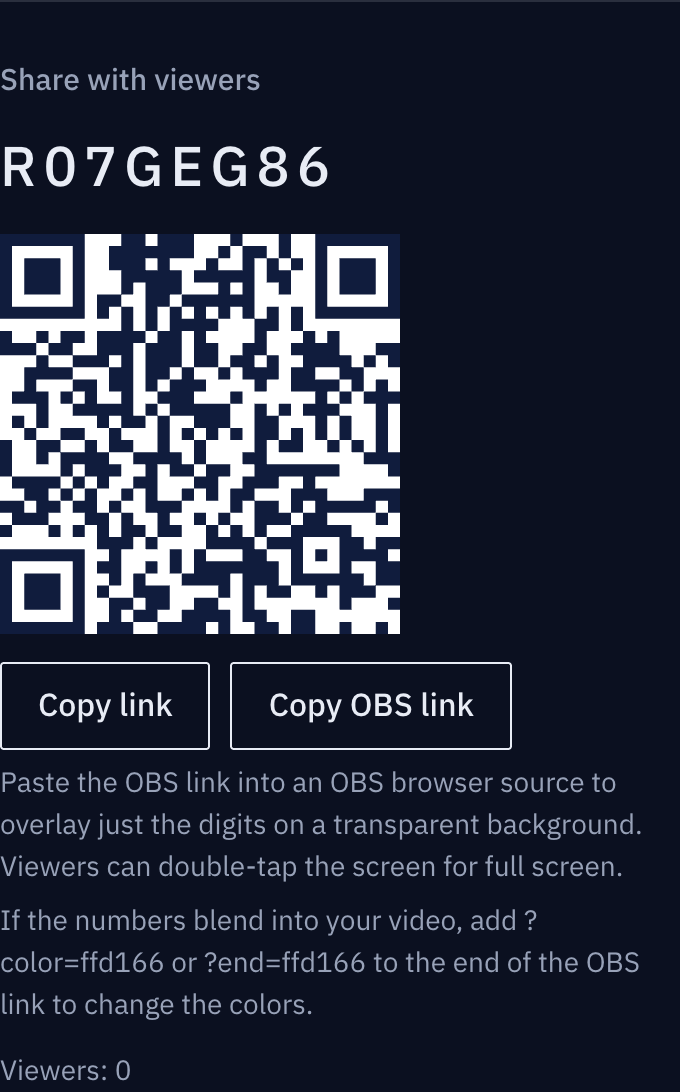
These screenshots show a closed demo room. Use the QR code and links from your own room.
Now I can keep facing the audience!
He places his phone on the lectern. It shows the same time remaining as the classroom display behind him.
Find it on the actual screen
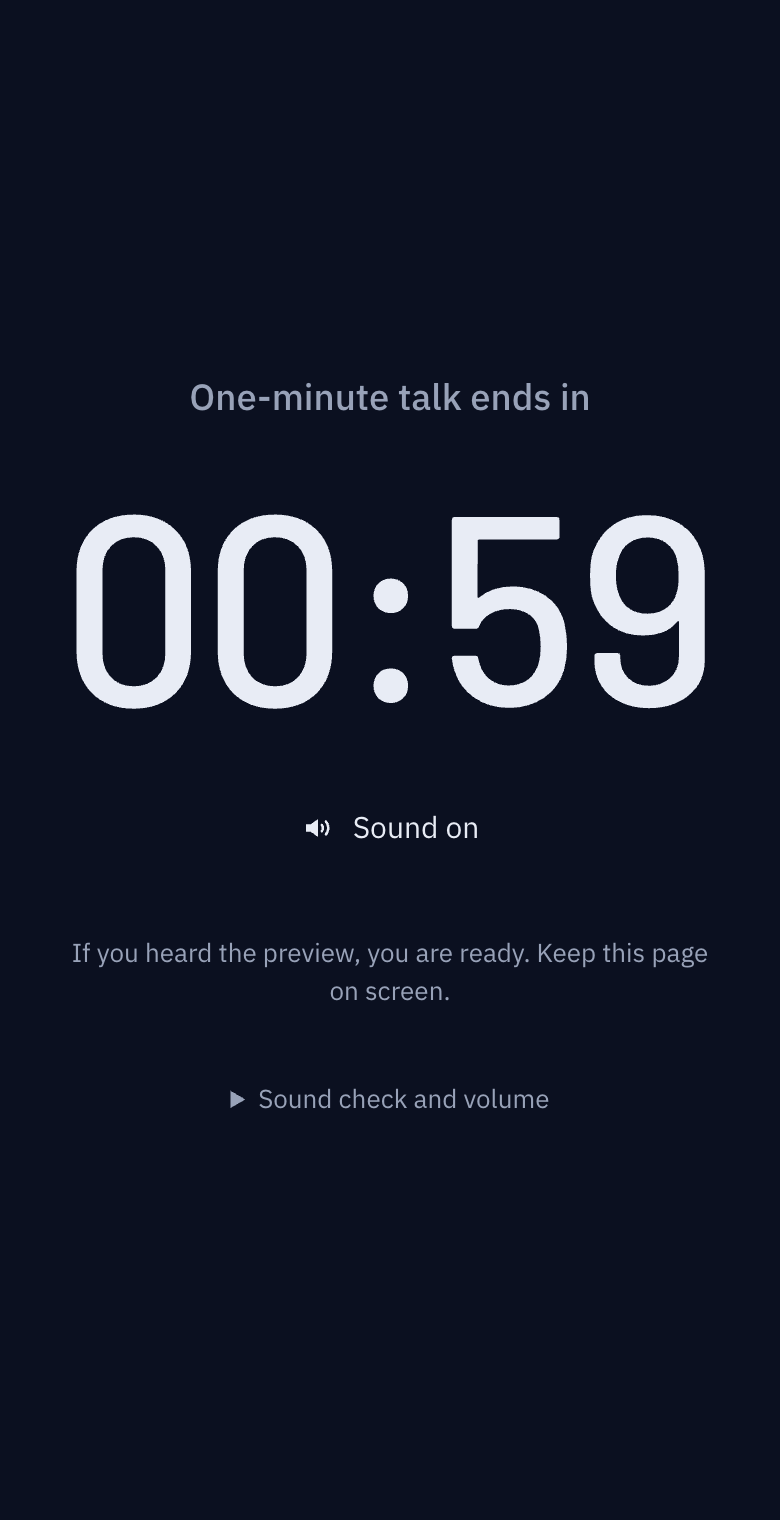
These screenshots show a closed demo room. Use the QR code and links from your own room.
That made it easier to wrap up.
He finishes without turning around. The teacher controls the timer on the laptop; the other screens show the time.
Find it on the actual screen
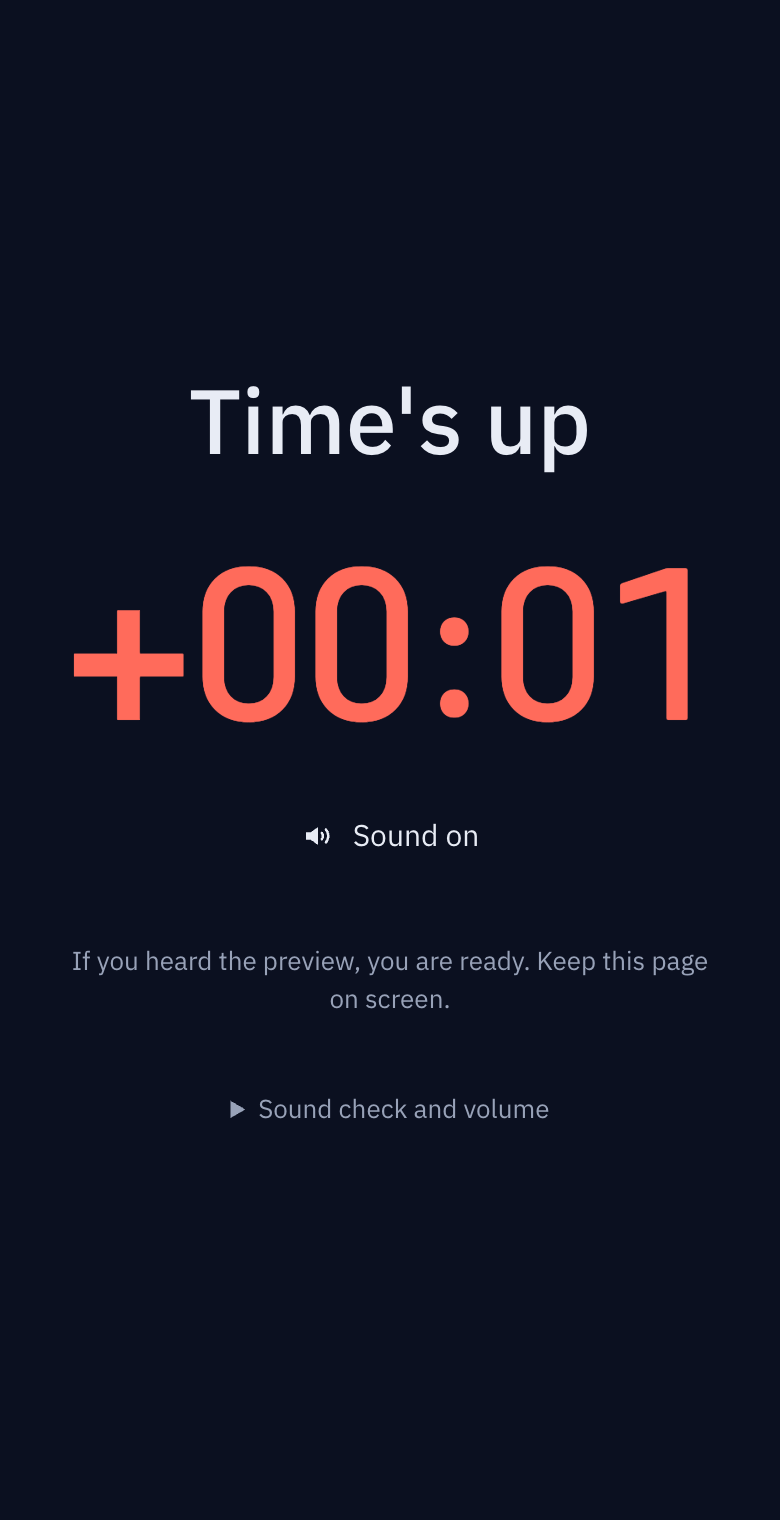
These screenshots show a closed demo room. Use the QR code and links from your own room.
The illustrations show the situation. Expand the section below each panel to see the actual buttons and screens.
Want to hear the end alert too?
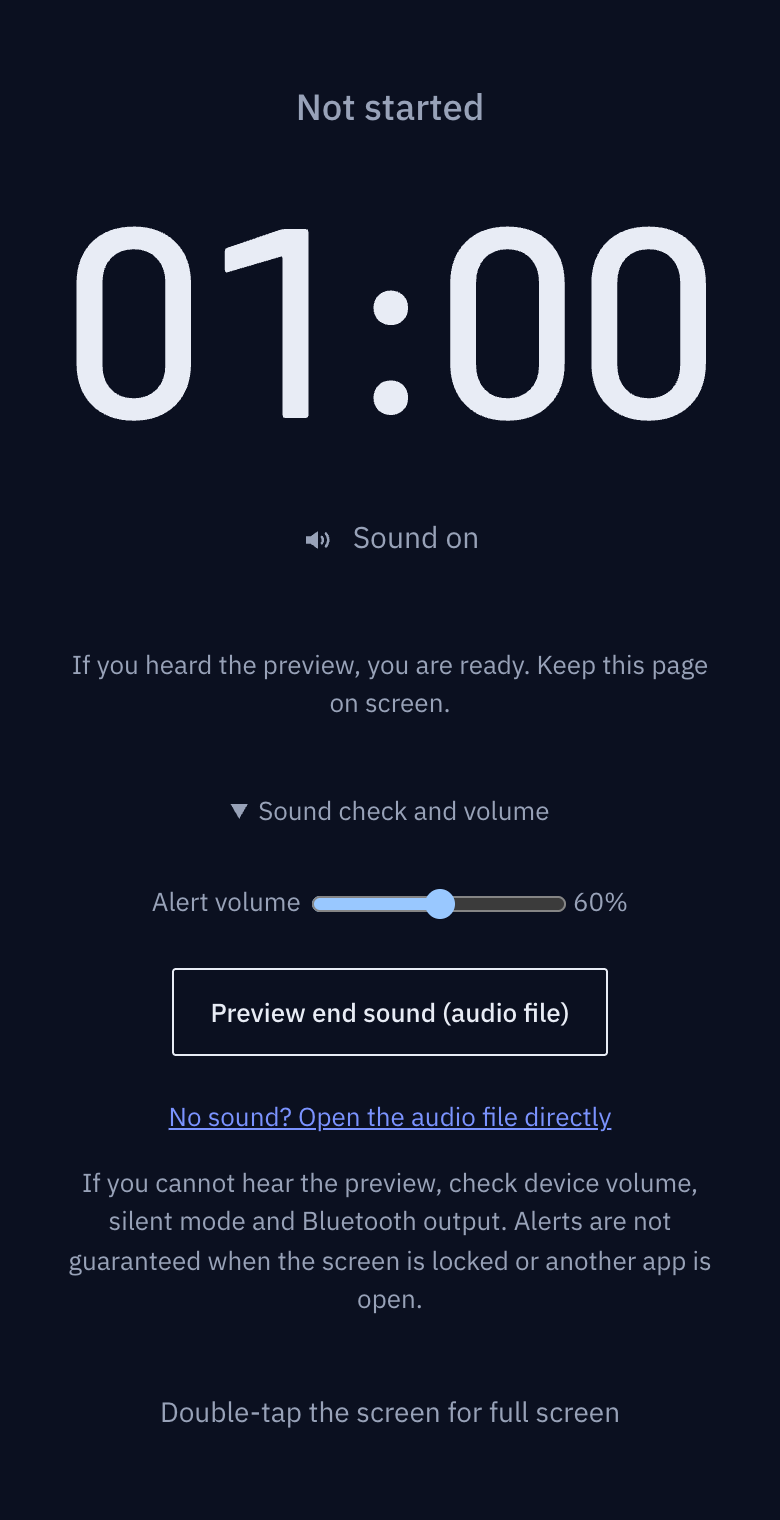
Enable sound on the presenter’s phone and listen to the preview. Keep the timer screen open during use. Alerts are not guaranteed while the screen is locked or another app is open.
Putting a timer on every student's screen
You put a timer on the board, the back rows can't read it, and during group work everyone is looking down anyway. Instead of calling out "two minutes left" three times, put the timer on each student's own screen.
When the board is not enough
Classroom timers have been around forever. The problem is not the timer. It is where it is.
- Group work: students face each other, so half of them have their backs to the board
- Tests and quizzes: only the students who look up know the time. For some students, looking up is itself a distraction or a worry
- Presentations: the presenter stands with their back to the board. The one person who needs the time can't see it
- Tablet lessons: students are already looking at their own screen. If the timer isn't there, it might as well not exist
Making the one big screen bigger doesn't fix this. The timer has to be on the screen the student is already looking at.
Five minutes of setup
- Create a timer room. No account. You get two links: one for you (the host link) and one for students (the participant link). Never send students the host link. Whoever has it controls the timer. Paste it into your own notes first.
- Hand out the participant link. Post it in the class chat, or show the QR code from the host screen on the board. Students just open it. Nothing to install, nothing to sign in to.
- Set up the lesson segments as timers ahead of time. For example "Explanation 10 min", "Group work 15 min", "Presentations 3 min", "Wrap-up 5 min". A room holds several timers (up to 20), and students see only the one you have selected. You won't have to stop the lesson to create the next one.
- Decide about sound. Use "Turn on the end sound" on the student screen. Only devices where it was pressed play the end sound. For a silent test, ask nobody to press it. For group work, one person per group.
- Try it once. Press start on the host screen and check that the student screen (open on your own phone) shows the same number. If the two match, you're ready.
During the lesson
Moving to the next segment. In the timer list on the host screen, tap the next row and every student screen switches to it. Switching doesn't stop the previous timer, so a presentation timer can run while the whole-lesson timer keeps counting in the background.
Instead of "two minutes left". Type one line in the message box on the host screen and it appears at the top of every student screen. "Finish up and come back to your seats" reaches everyone without raising your voice. Students can't reply. It is a notice board, not a chat.
Different presentation times for different students. Make one 3-minute presentation timer and hold Reset when the next student is up (it needs a long press so a stray tap can't rewind the timer). Want to give someone more time? Press +1 min. Student screens grow with it.
Tests. Name the timer something like "Test" so the label reads "Test ends in", and ask students not to turn sound on. Nobody has to look up. When time runs out, the number turns red and the label says "Time's up" in large type. It says it in words, not only in colour, so students who don't distinguish colours well still know.
Common problems
School Wi-Fi keeps dropping. Even when disconnected, the number on a student screen keeps counting on that device's own clock. While disconnected, the number turns grey and the label says "Connection lost", which means anything you did in the meantime (pausing, switching) hasn't reached that screen yet. When the connection returns, it catches up on its own. Students don't need to refresh.
Students' phones all have slightly different clocks. Each screen adjusts for its clock difference from the server. Network delay and device state can still cause differences in when updates appear.
Screens turn off. When a student presses "Turn on the end sound", that device also keeps its screen awake (where the device supports it). Devices without sound on will lock as usual, so for a silent test ask students to extend their auto-lock for a while.
Continue on this device. Use My timers on the home page. When device saving is enabled, host access is kept in this browser for the selected retention period. Send yourself the host link to switch devices. A recovery password is an optional backup if browser data is lost. Use Forget on this device after using a shared device. Expired rooms must be created again.
A dark classroom. When you turn the lights off for a video, a white screen glares. If a student's device is in dark mode, the timer screen goes dark on its own. Nothing to set.
A school where students can't use phones. It works without student devices too. Put the participant link on the board screen in full screen (double-tap the screen), and control it from the host screen on your own phone. Being able to pause and extend while walking around the room, instead of being tied to the front, is worth it on its own.
How long the room lasts
The room stays for 24 hours after your last action (longer if a timer runs past that, until its end time plus 2 hours). The same class tomorrow can use the same link. A week later, make a new one. It takes ten seconds.
Checklist
- Host link saved in my notes (never sent to students)
- Checked My timers; prepared a host link or optional recovery method for another device
- Timers for each lesson segment created ahead of time
- Decided where the participant link or QR code goes (class chat, board screen)
- Sound rule decided (nobody, one per group, everyone)
- Opened the student screen on my own phone and watched it move with the host screen
After using a shared device
Open My timers → Device storage settings on the home page to turn off saving or clear all saved host access. Access expires 24 hours after its first save by default; 1 hour and 7 days are also available. Visits do not extend retention. If the browser is closed, cleanup runs on the next visit. Increasing retention does not extend existing entries. Turn off saving on shared PCs.
Forget on this device removes only the selected room's saved access; it does not close the room. Use Close room when the event is over. Names, type icons, codes, last-used times and auto-delete times help distinguish saved rooms.