User guide · Back to the basics
The same timer backstage
The talk is in progress, but the next speaker backstage cannot see how much time remains.
When should I get ready?
Without a view of the stage display, the next speaker keeps asking the crew for an update.
Find it on the actual screen
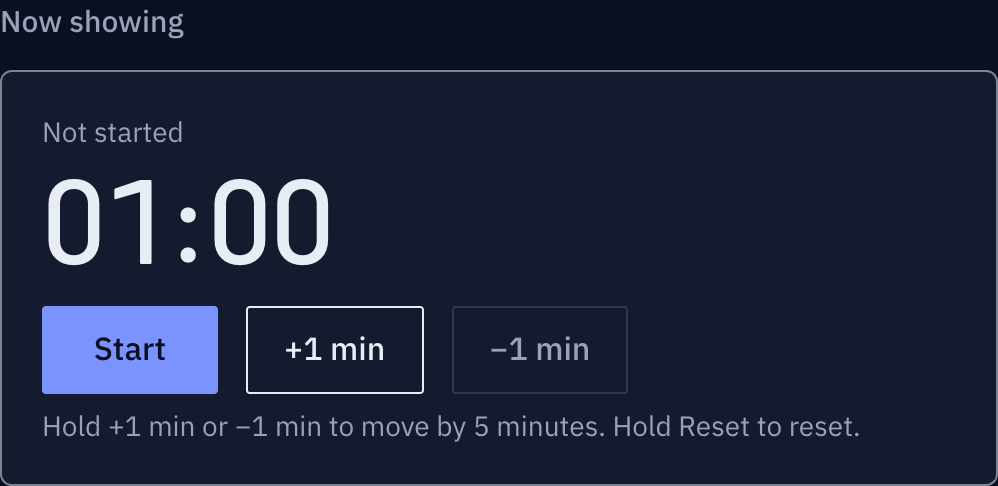
These screenshots show a closed demo room. Use the QR code and links from your own room.
Keep this timer open.
The manager shares a viewer link or QR code with speakers and crew, keeping control of the timer.
Find it on the actual screen
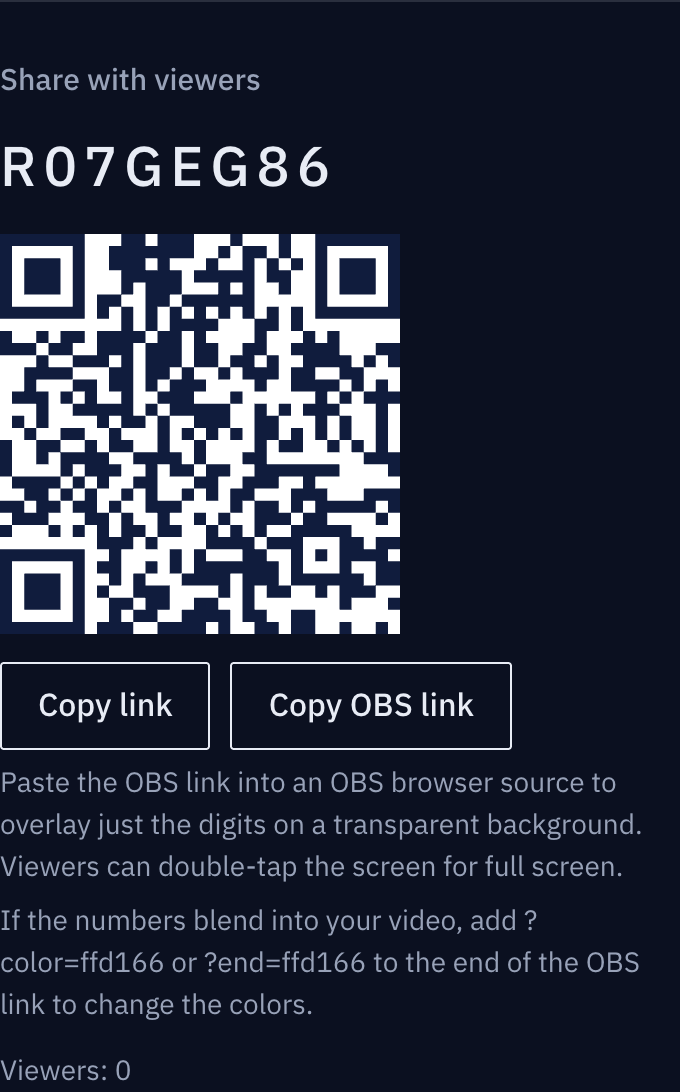
These screenshots show a closed demo room. Use the QR code and links from your own room.
Thirty seconds. I’ll get ready.
The tablet on stage and the phone backstage show the same time remaining.
Find it on the actual screen
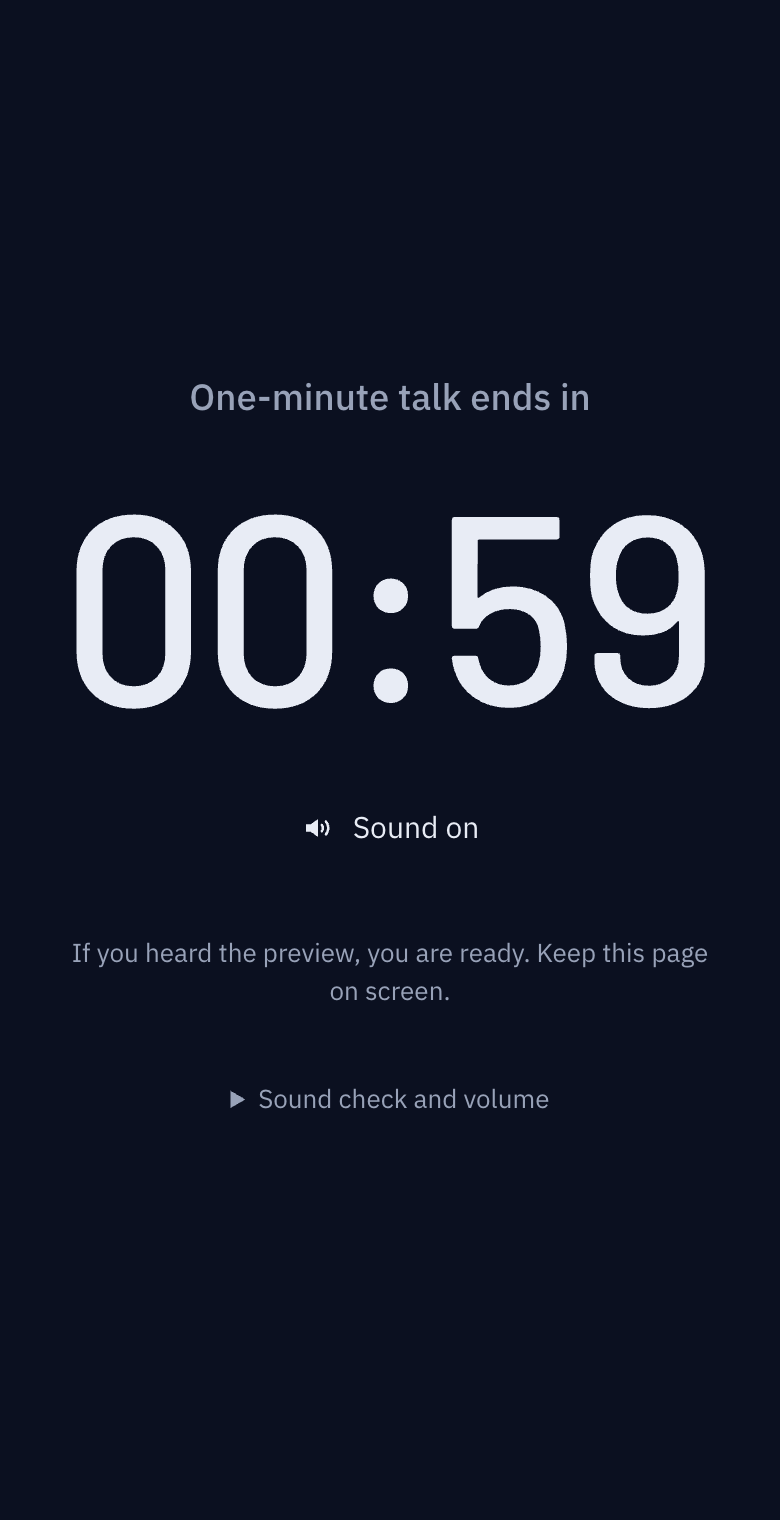
These screenshots show a closed demo room. Use the QR code and links from your own room.
That talk is over. You’re next!
The manager checks the end display and cues the next speaker. The timer does not call the next person automatically.
Find it on the actual screen
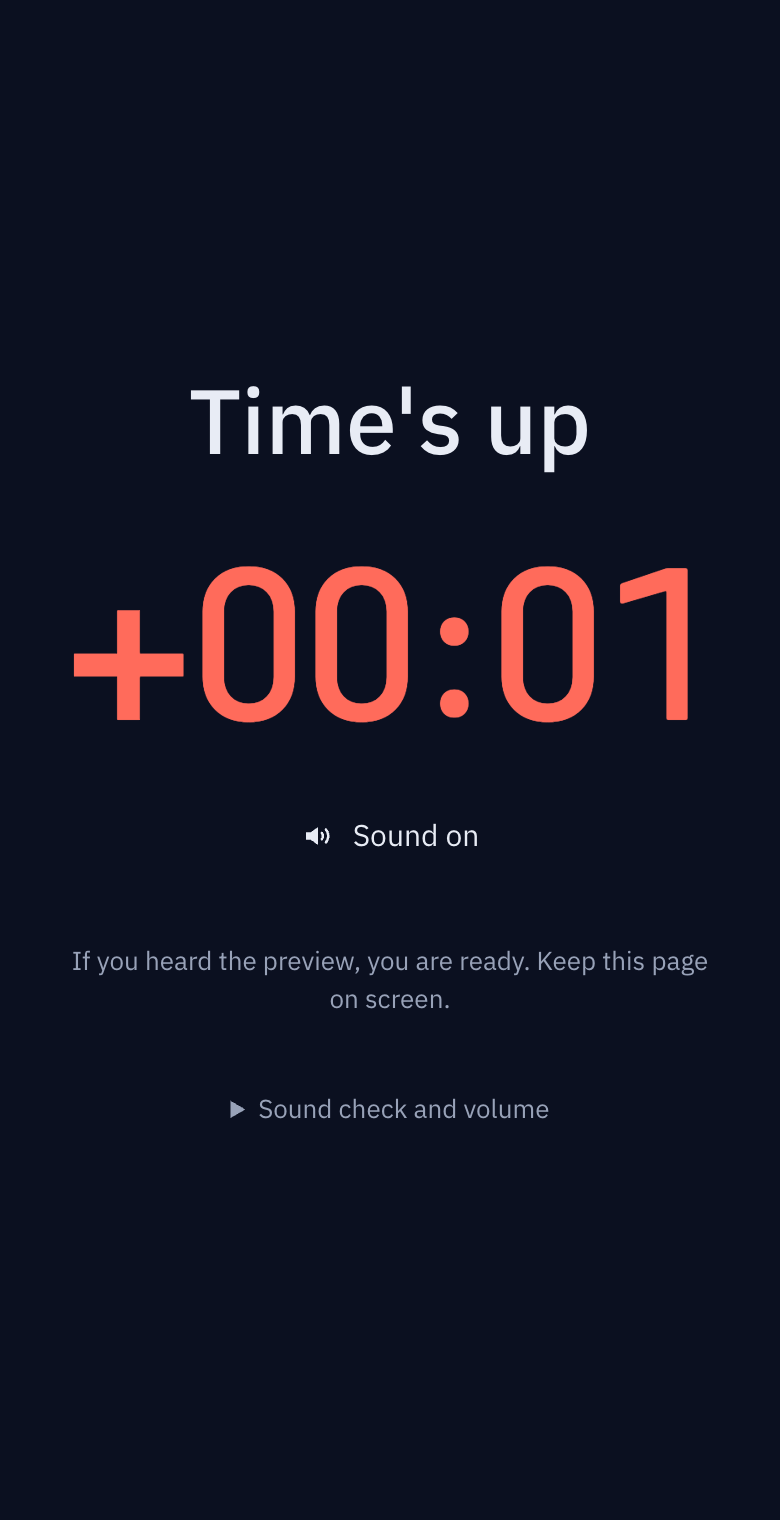
These screenshots show a closed demo room. Use the QR code and links from your own room.
The illustrations show the situation. Expand the section below each panel to see the actual buttons and screens.
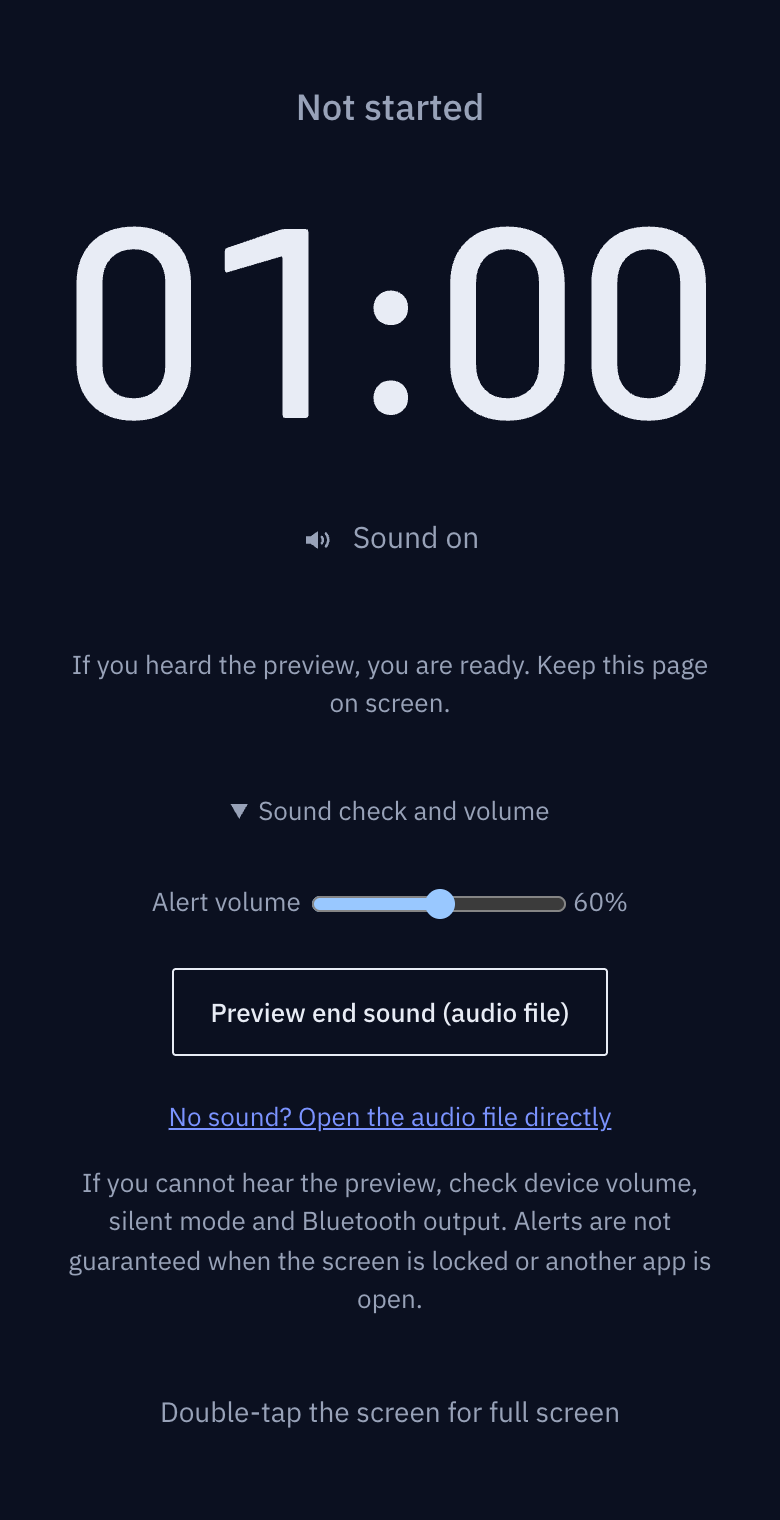
Want to hear the end alert too?
Preview and enable sound only on devices that need an alert. Keep screens visible and follow the stage manager’s cues for important transitions.
Events and shows: one clock for the stage and the backstage
The speaker on stage doesn't know the time, the next act in the green room doesn't know when to go, and the sound booth doesn't know when to bring up the music. Three people looking at three clocks are all slightly wrong. Here is how to put one timer, run by one person, into everyone's hands.
When the stage screen is not enough
Venues already have big screens. The problem is that the people who need to see the time are behind the stage.
- The speaker: hard to see the confidence monitor from the stage, or the monitor is full of slides and shows no clock
- The green room: the next act asks a crew member "how long now?", and the crew member asks on the radio
- Sound and lighting booth: there is a cue sheet, but when the show runs late the cue sheet is wrong
- The MC: the last person to find out that things are running late
Calling out times over the radio ties up a person. If everyone sees the same time, nobody has to ask.
Five minutes of setup
- Create a room and give the host link to the stage manager (or whoever owns the time). One person holds the host link. If several people control it, nobody knows who paused. The host can run it from a phone while walking around backstage.
- Continue on this device. Use My timers on the home page. When device saving is enabled, host access is kept in this browser for the selected retention period. Send yourself the host link to switch devices. A recovery password is an optional backup if browser data is lost. Use Forget on this device after using a shared device. Expired rooms must be created again.
- Move the cue sheet into timers. "Opening 5 min", "Talk 1: 15 min", "Talk 2: 15 min", "Break 10 min", "Q&A 20 min", in order (up to 20). Put the speaker's name in the label so the green room sees "I'm next" at a glance.
- Send out the participant link. One link in the crew group chat. Have speakers open it on their phones during rehearsal. If the green room has a TV, open it there and double-tap the screen for full screen.
- Run through it once in rehearsal. Switch through the timers in order and watch the green room screen and the speakers' phones follow. Whatever fails here fails in the show.
During the show
Running late. When a talk runs over, press +1 min. Every screen extends together. No need to fix and redistribute the cue sheet. To pull time back, −1 min.
Moving to the next item. Tap the next row in the list on the host screen. The previous timer doesn't stop, so you can run a whole-event timer ("2 hours to close") and switch session timers on top of it.
For the speaker on stage. Put the participant screen on the speaker's phone or a tablet on the lectern. It shows only a label and a number, so it sits next to the slides without getting in the way. If lighting has a cue at one minute remaining, the booth is looking at the same number, and nobody needs the radio.
Messages. "Next act to the green room door" or "Break extended by 5 minutes" typed as one line by the host appears at the top of every screen. It isn't a chat, so no replies come back and the screens stay clean.
Live stream or recording. If you use OBS or similar, add the OBS link as a browser source. Just the digits appear over the video with no background, and you adjust colour, size and position with values on the end of the address (for example ?color=ffd166&size=120&align=right). When the host switches timers backstage, the digits in the stream switch too.
Common problems
Venue Wi-Fi is unreliable. Short drops don't matter; each screen keeps counting on its own clock. A disconnected screen turns its number grey and says "Connection lost", so whoever is watching it knows the host's latest action may not have arrived. It catches up on reconnect. For critical spots like the booth, use a wired connection or mobile data.
Dark auditorium, dark backstage. If the device is in dark mode, the timer is dark too. Put the green room TV in dark mode and it won't glare with the lights down. The background is deep navy rather than pure black, so it doesn't blotch on a projector.
Several people want control. Technically you can copy the host link around. Don't. Two people pausing and switching at the same time makes the floor more confused, not less. One person controls, everyone else views, and the radio is for decisions, not for the time.
Lots of viewers. One room takes up to 500 connections, which is plenty for crew and performers. For the whole audience, a big screen is the right tool.
Checklist
- One host chosen; the host link is on that person's phone
- Checked My timers; prepared a host link or optional recovery method for another device
- Timers created in cue-sheet order (names in labels)
- Participant link posted in the crew group chat
- Green room screen in full screen (double-tap)
- Booth on wired or mobile data
- Switched through the whole show once in rehearsal
- If streaming: OBS link added as a browser source, colour and size set
After using a shared device
Open My timers → Device storage settings on the home page to turn off saving or clear all saved host access. Access expires 24 hours after its first save by default; 1 hour and 7 days are also available. Visits do not extend retention. If the browser is closed, cleanup runs on the next visit. Increasing retention does not extend existing entries. Turn off saving on shared PCs.
Forget on this device removes only the selected room's saved access; it does not close the room. Use Close room when the event is over. Names, type icons, codes, last-used times and auto-delete times help distinguish saved rooms.