User guide · Back to the basics
The same remaining time across exam rooms
Control the timer from the exam office while each room follows its front display. Follow the invigilator’s start and finish instructions.
These rooms show different times.
Starting a separate timer in each room can lead to different readings. Prepare one timer controlled from the exam office.
Find it on the actual screen
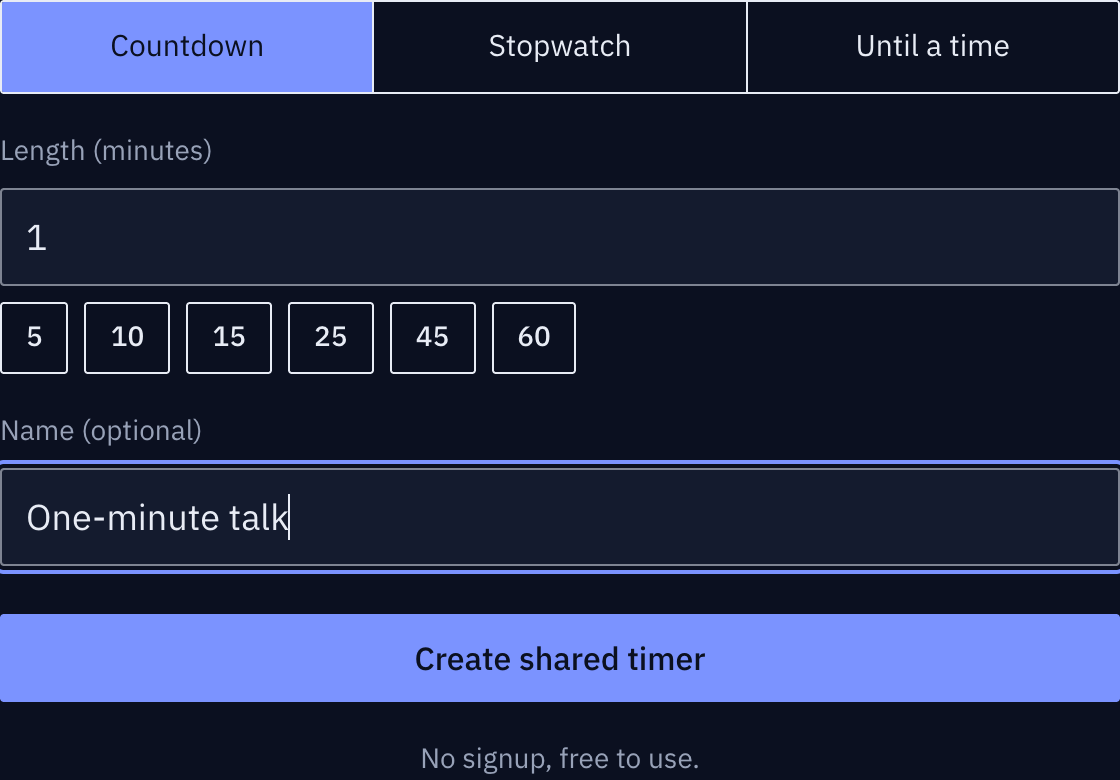
These screenshots show a closed demo room. Use the QR code and links from your own room.
Open the participant link on each display.
The exam office keeps the host link. Each room’s computer opens the participant link for the same room.
Find it on the actual screen
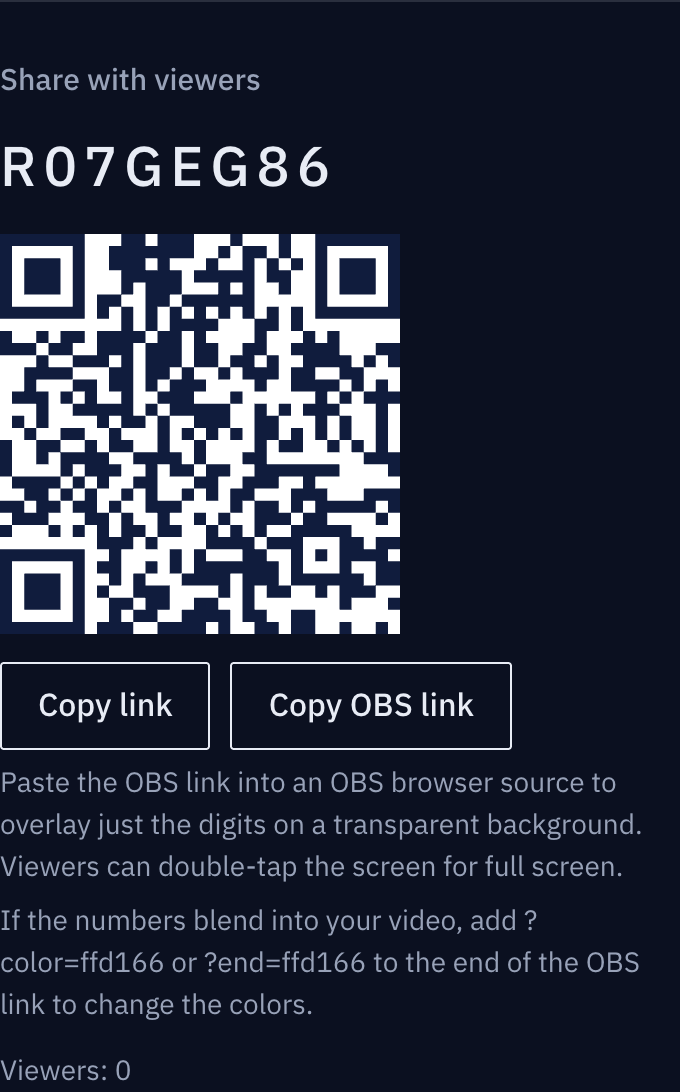
These screenshots show a closed demo room. Use the QR code and links from your own room.
Everyone ready? I’ll start the timer.
After the invigilators confirm they are ready, the coordinator presses Start. Each room follows the remaining exam time.
Find it on the actual screen
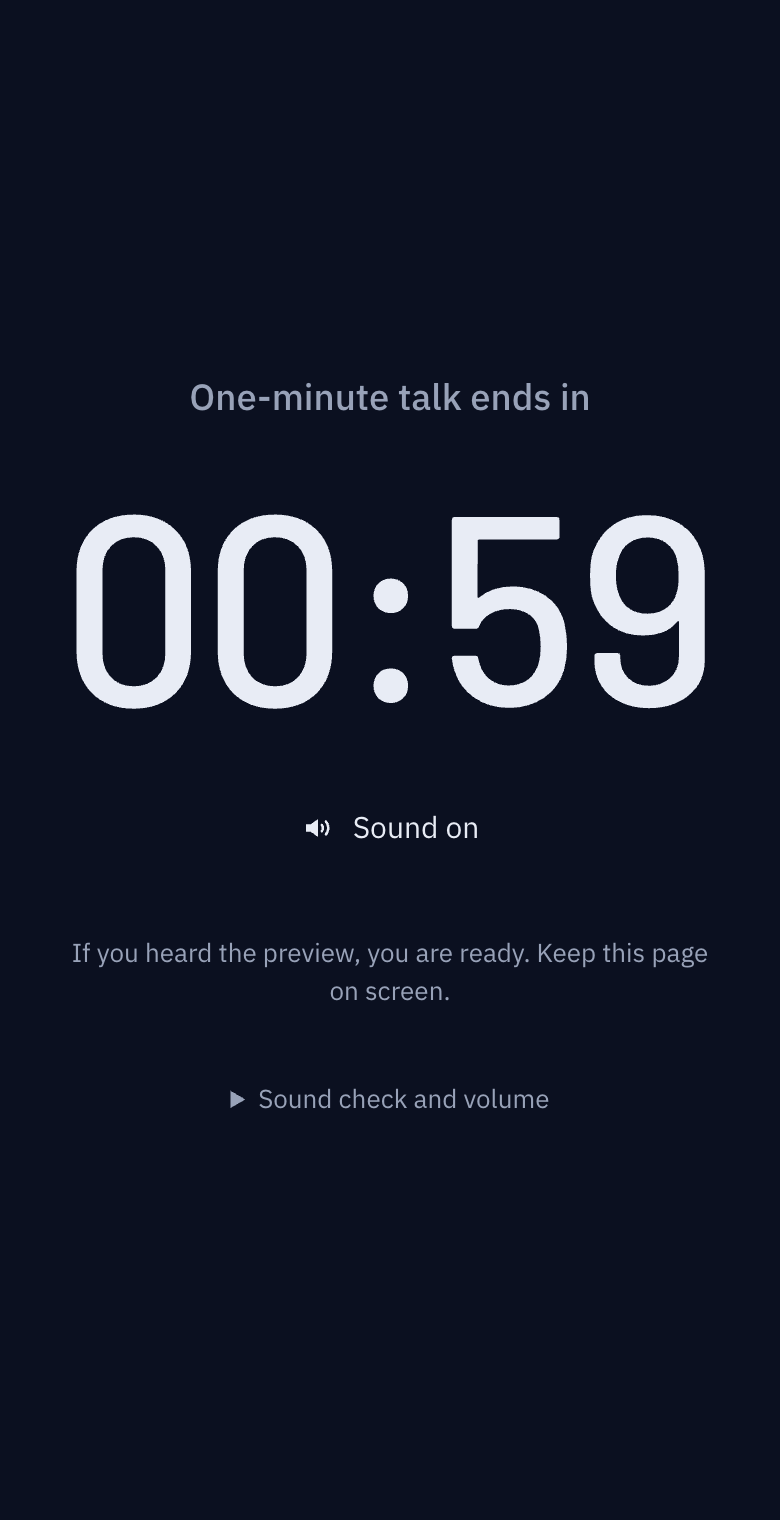
These screenshots show a closed demo room. Use the QR code and links from your own room.
The exam is over. Please hand in your papers.
Overtime appears after zero. The invigilator confirms the finish and collects the answer sheets.
Find it on the actual screen
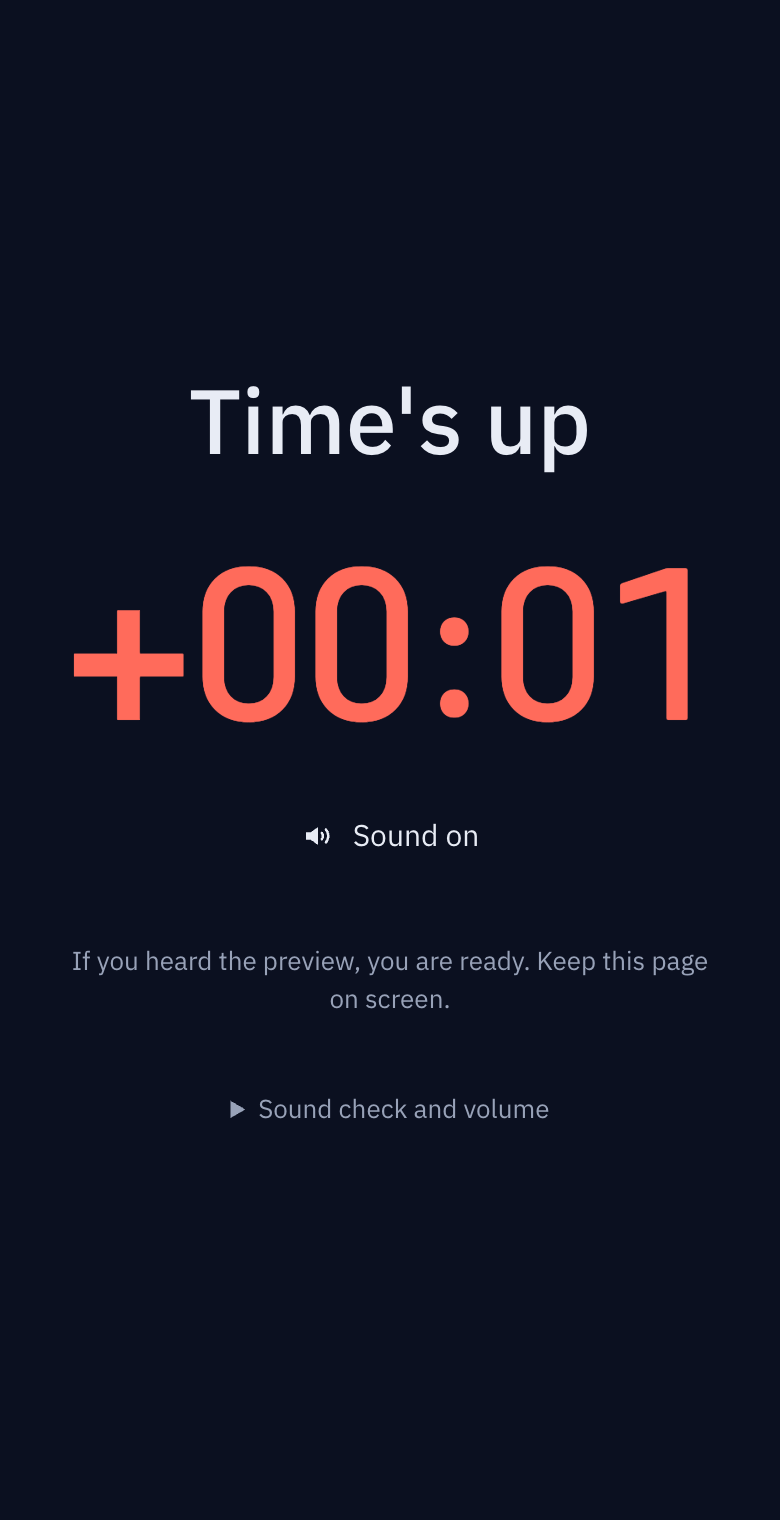
These screenshots show a closed demo room. Use the QR code and links from your own room.
The illustrations show the situation. Expand the section below each panel to see the actual buttons and screens.
Check before the exam
Share one participant link among rooms taking the same exam. Network delays can affect displays. Rehearse first and use the invigilator’s instructions to confirm the finish.
Exam supervision — the same remaining time in every exam room
Mock exams, certification tests and academy tests run in several rooms at once. When each invigilator calls "start" and "stop" from their own watch, rooms drift apart by a minute or two. Here is how to press start in one place and have every exam room show the same remaining time. It is the cheapest way to cut fairness disputes.
Why rooms drift
- Invigilators read their own wristwatch or wall clock, and those already disagree by a minute or two
- Even with a PA announcement, handing out the papers takes a different amount of time in each room
- "Ten minutes left" and "five minutes left" are announced by voice and get missed or delayed
- Candidates often cannot bring a watch and only see the front of the room. If there is nothing there, they keep asking the invigilator
Exam time has to be one number for everyone, and it has to come from one place.
The day before
- Create the room at the exam office and keep the host link on the office computer only. Invigilators get the participant link. It becomes structurally impossible for an invigilator to stop the timer by mistake.
- Create one timer per session. "Period 1 Korean 80", "Period 2 Maths 100", with the subject and length in the name. Make the breaks timers too, so the next period starts cleanly.
- Open the participant link on the front screen of every room. Use the computer connected to the classroom TV or projector and double-tap for fullscreen. The screen is only digits, readable from the back row.
- Set the sound to the exam rules. If you use the end sound, enable it on each room's computer and check the volume with the preview. If the end is announced over the PA, leave sound off.
- Rehearse. Start a one-minute timer from the office and confirm every room's screen moves. A room that does not change has the wrong link or no connection.
On the day
Start. Each room tells the office when papers are handed out, and the office presses start. Every room starts at the same moment with the same number. Press it together with the PA "begin".
Time warnings. Send "10 minutes left" as a message and it appears on the participant screens. No invigilator has to say it, and the timing does not vary by room. Messages are sent from the host screen.
End. At zero the digits turn red and "Finished" appears large. Overtime keeps climbing afterwards, so "did it just end, or a while ago" is visible on the screen. There is less room to argue about when papers were collected.
Extension. If a PA fault or a misprint requires extra time, the office presses [+1 min]. Every room updates at once. A long press adds five minutes.
Timers on candidates' own devices
For computer-based or online exams, candidates open the participant link beside the exam window, as in the online exam section of the remote meetings guide. Decide two things.
- Have candidates turn sound off. End sounds from many devices a few seconds apart are distracting
- Small display differences can occur through network delay or device state, so confirm the end of the exam with the invigilator's announcement as well as the screen
Several exams at once
If exams of different lengths run at the same time (Level 1 for 90 minutes, Level 2 for 60), create a separate room for each. All participant screens in one room show the same timer, so rooms that need different times need different rooms. Keep both open in two tabs on the office computer.
Common problems
One room's screen froze. That room lost its connection. Once a timer has started, each device counts on its own, so the remaining time keeps going and re-syncs when the connection returns. If it dropped before the start, the invigilator refreshes; failing that, agree the time with the office by phone.
Can a candidate with the link control it? No. The participant link cannot start, stop or change the time. Control is checked on the server and belongs to the host link only.
How many screens can join? Up to 500. Front screens only means one per room; if candidates' devices join too, check the headcount.
The exam is over. Close room on the host screen ends it immediately. Otherwise it expires 24 hours after the host's last action.
Checklist
- Host link at the office only; invigilators have the participant link only
- Timers per period and per break, named
- Every front screen fullscreen and rehearsed the day before
- Sound rule decided (PA or end sound) and volume checked
- Warning message times decided (10 minutes, 5 minutes)