User guide · Back to the basics
Keep the timer beside your meeting
Keep the presentation visible while everyone follows the same timer in a separate window.
How much discussion time is left?
It is easy to lose track while reading the slides. Sharing only a timer could cover the presentation.
Find it on the actual screen
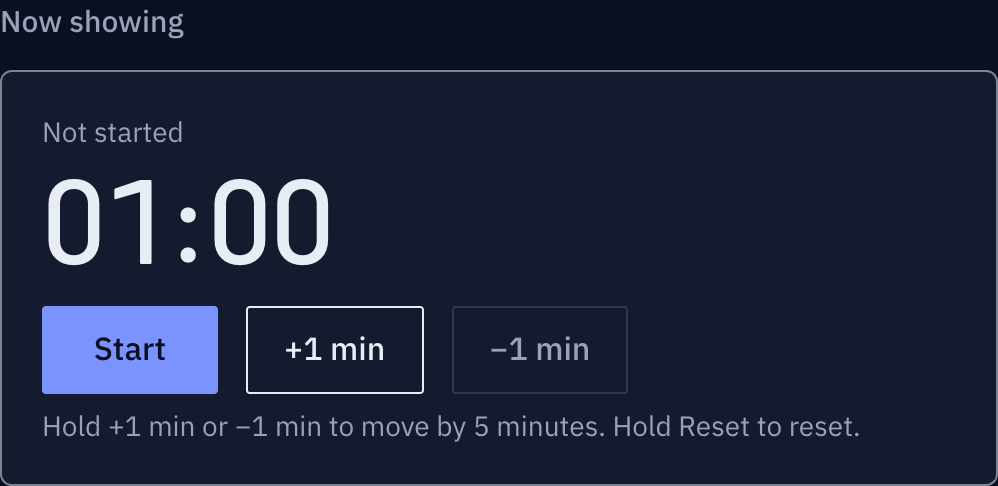
These screenshots show a closed demo room. Use the QR code and links from your own room.
Open the viewer link in the chat.
Participants open the link in a separate browser window. The host link stays private.
Find it on the actual screen
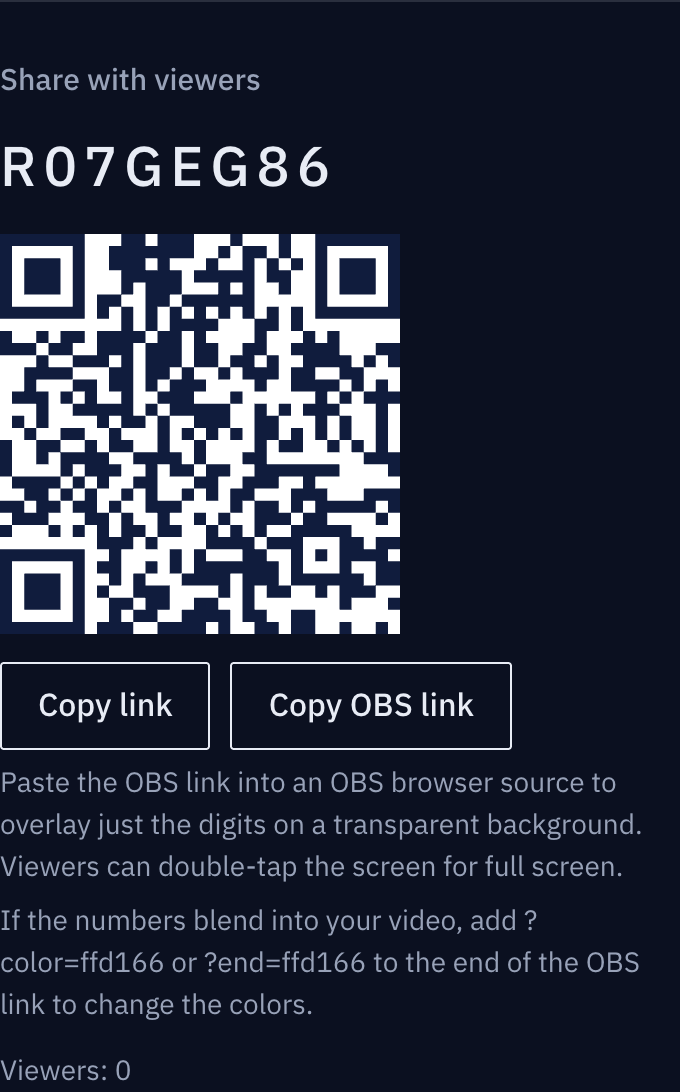
These screenshots show a closed demo room. Use the QR code and links from your own room.
I can see the slides and the time.
The host places the material and timer side by side. Participants follow the same time in a separate window or on a tablet.
Find it on the actual screen
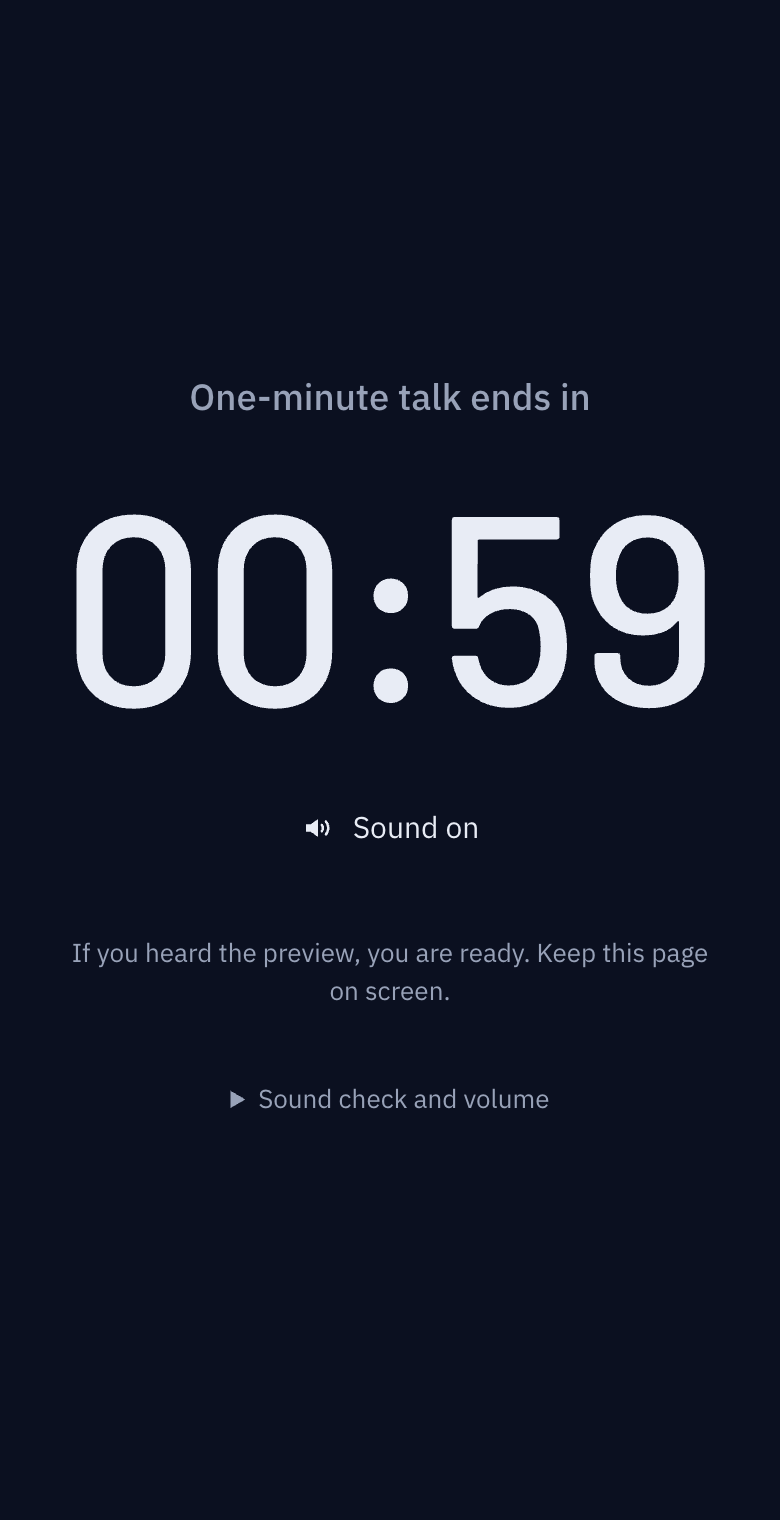
These screenshots show a closed demo room. Use the QR code and links from your own room.
Time to wrap up our ideas.
The end display helps the group finish the discussion. The call and presentation stay open.
Find it on the actual screen
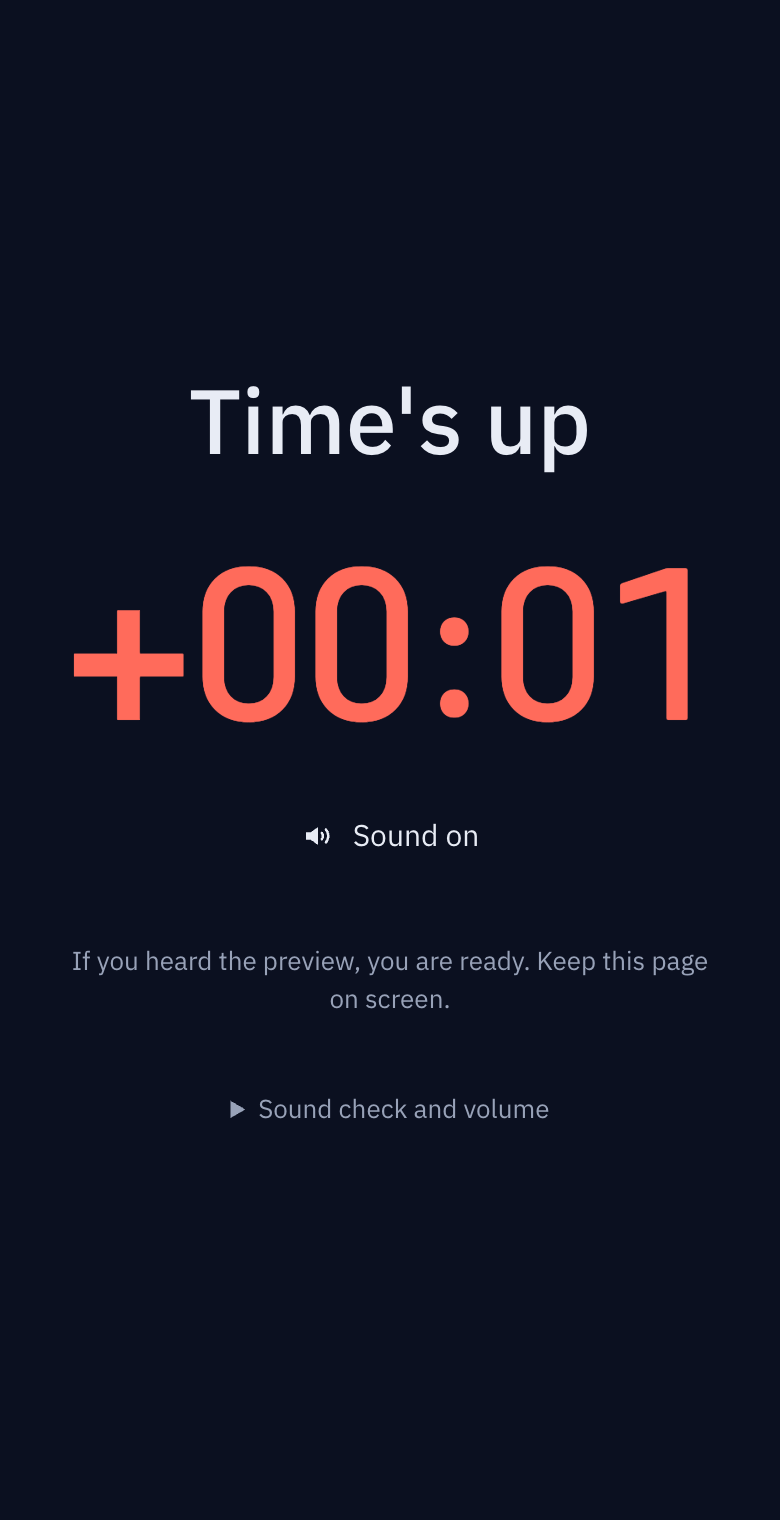
These screenshots show a closed demo room. Use the QR code and links from your own room.
The illustrations show the situation. Expand the section below each panel to see the actual buttons and screens.
End alerts during a call?
An alert may be picked up by your microphone. You can keep sound off and watch the end display, or preview and enable it only on the devices that need it.
Remote meetings and online classes: a timer for everyone without screen sharing
Share your screen to show a timer and the slides disappear. Type "5 minutes left" in the chat and nobody sees it. Split into breakout rooms and the timer is gone entirely. Here is how to put the same timer on each participant's own screen.
When screen sharing is not enough
Meeting tools have timers, and you can always share a timer on your screen. But:
- Screen sharing is one thing at a time. Share the timer and you can't show the slides
- In breakout rooms, the main room's shared screen isn't visible
- If a participant is looking at another window (a document, a test), the timer in the meeting window is covered
- In an online exam, students must look at the exam, and the timer is in the meeting window
The timer belongs off to the side of the participant's screen, not inside the meeting window. One browser tab is enough.
Five minutes of setup
- Create a room and save the host link in your own notes. Don't send this link to participants. It is an easy mistake, which is why the two links are kept apart on screen.
- Post the participant link in the meeting chat. Better still, put it in the invitation email. Participants open it and keep the browser window small next to the meeting window. Many people open it on a phone and prop it up on the desk.
- Make a timer per activity. "Presentation 10 min", "Small-group discussion 15 min", "Wrap-up 5 min", "Exam 50 min". When people split into breakout rooms, the timer on their own screen keeps going, and when the host controls it from the main room, every breakout room's screens move together.
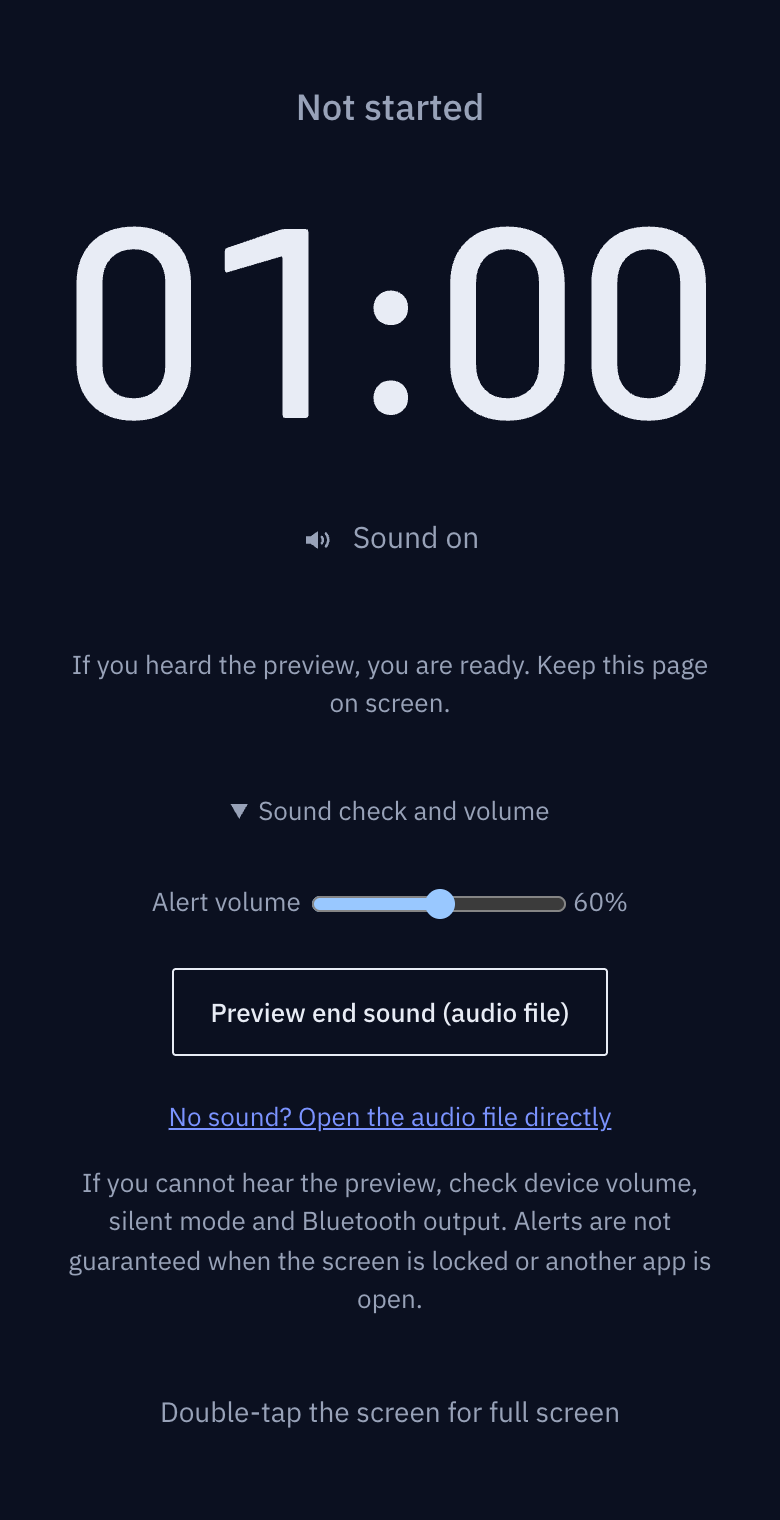
- Tell people about sound. Pressing "Turn on the end sound" on the participant screen plays a short sound on that device when time runs out. With microphones open it will leak into the call, so keep it off during meetings and use it only when everyone is working quietly on their own, such as an exam.
- Check once. Open the participant link on your phone, press start on the host screen and watch both move together.
During the session
Breakout discussions. Start a 15-minute timer and send people to their rooms. Everyone sees the remaining time on their own screen. At two minutes left, send the message "Please sum up your conclusion in one line" and it appears in every breakout room at once. No need to visit each room.
Keeping presentations on time. Tell the presenter to watch the timer on their own screen. When they run over, the number turns red and the label says "Time's up" in large type. The presenter knows without the chair having to interrupt. To extend, press +1 min.
Online exams. Before the exam, have students open the participant link next to the exam window. The shared start state and server time mean students do not need to enter a start time themselves. Network delay and device state can still affect the display, so confirm the end of an exam with a separate announcement.
Meetings across borders. Time zones don't matter. The timer shows "how long is left", not "what time it is", and the remaining time is the same everywhere. If you make an "until a time" timer, that time is interpreted on the host's side and participants see only the remaining time.
Common problems
A participant says "mine is three seconds behind". Usually the screen was in the background for a long time and was just brought back. The clock resyncs the moment the screen becomes visible again, so it settles within a few seconds. If not, one refresh fixes it.
How is this different from the meeting tool's timer? That timer lives inside the meeting window. Leave the window and it's gone, enter a breakout room and it disappears, and if the call drops it drops with it. This one is a separate browser tab unrelated to the call. It survives a dropped call, and you can open it on a phone.
Many participants. One room takes up to 500 connections. For a large webinar, connect the speakers and the operations team and show the audience a timer via screen share instead.
Continue on this device. Use My timers on the home page. When device saving is enabled, host access is kept in this browser for the selected retention period. Send yourself the host link to switch devices. A recovery password is an optional backup if browser data is lost. Use Forget on this device after using a shared device. Expired rooms must be created again.
Can participants control anything? Participants cannot start, pause or change the timer. They can adjust sound, volume and display settings on their own device. Timer control requires host authorization checked by the server.
Checklist
- Participant link in the invitation email or the meeting chat
- Host link only in my notes
- Checked My timers; prepared a host link or optional recovery method for another device
- One timer per activity (presentation, discussion, exam)
- Sound rule announced (off in meetings, personal choice in exams)
- Opened the participant screen on my own phone and watched it follow the host screen
After using a shared device
Open My timers → Device storage settings on the home page to turn off saving or clear all saved host access. Access expires 24 hours after its first save by default; 1 hour and 7 days are also available. Visits do not extend retention. If the browser is closed, cleanup runs on the next visit. Increasing retention does not extend existing entries. Turn off saving on shared PCs.
Forget on this device removes only the selected room's saved access; it does not close the room. Use Close room when the event is over. Names, type icons, codes, last-used times and auto-delete times help distinguish saved rooms.