User guide · Back to the basics
Join an activity with a QR code
The activity has already started. Join the same timer without waiting for the facilitator.
How much time is left?
The facilitator is helping someone else. Look for the viewer QR code at the entrance.
Find it on the actual screen
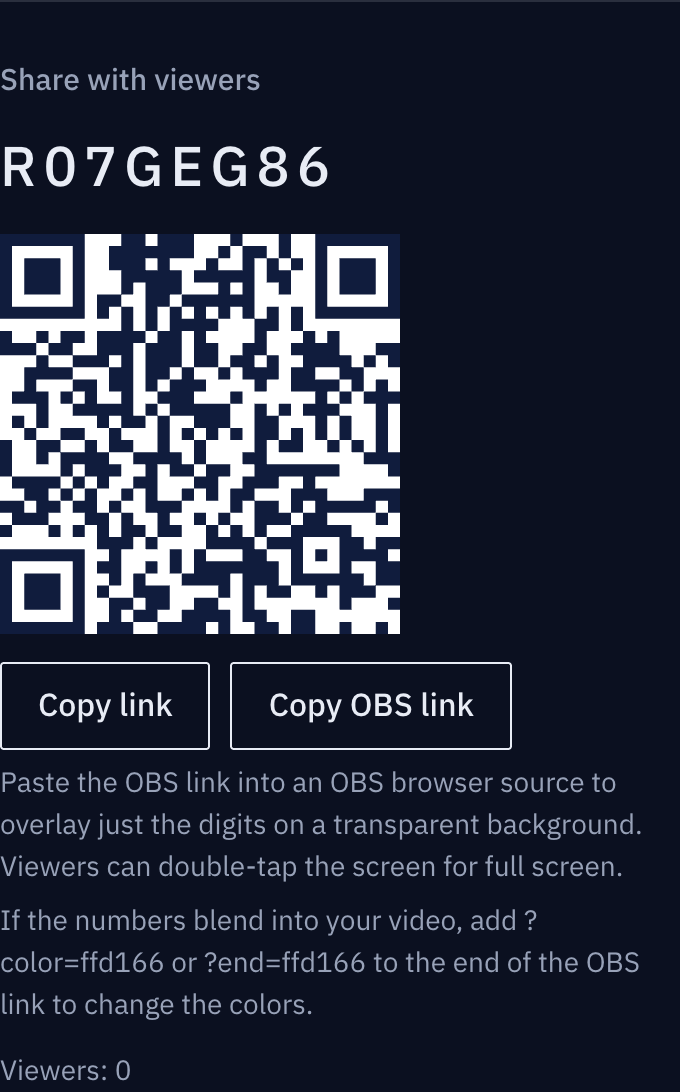
These screenshots show a closed demo room. Use the QR code and links from your own room.
I can scan it with my camera.
Scan the viewer QR code and open the link. No separate app installation is needed.
Find it on the actual screen
These screenshots show a closed demo room. Use the QR code and links from your own room.
My timer matches theirs!
You join the timer already in progress. Your arrival does not restart it.
Find it on the actual screen
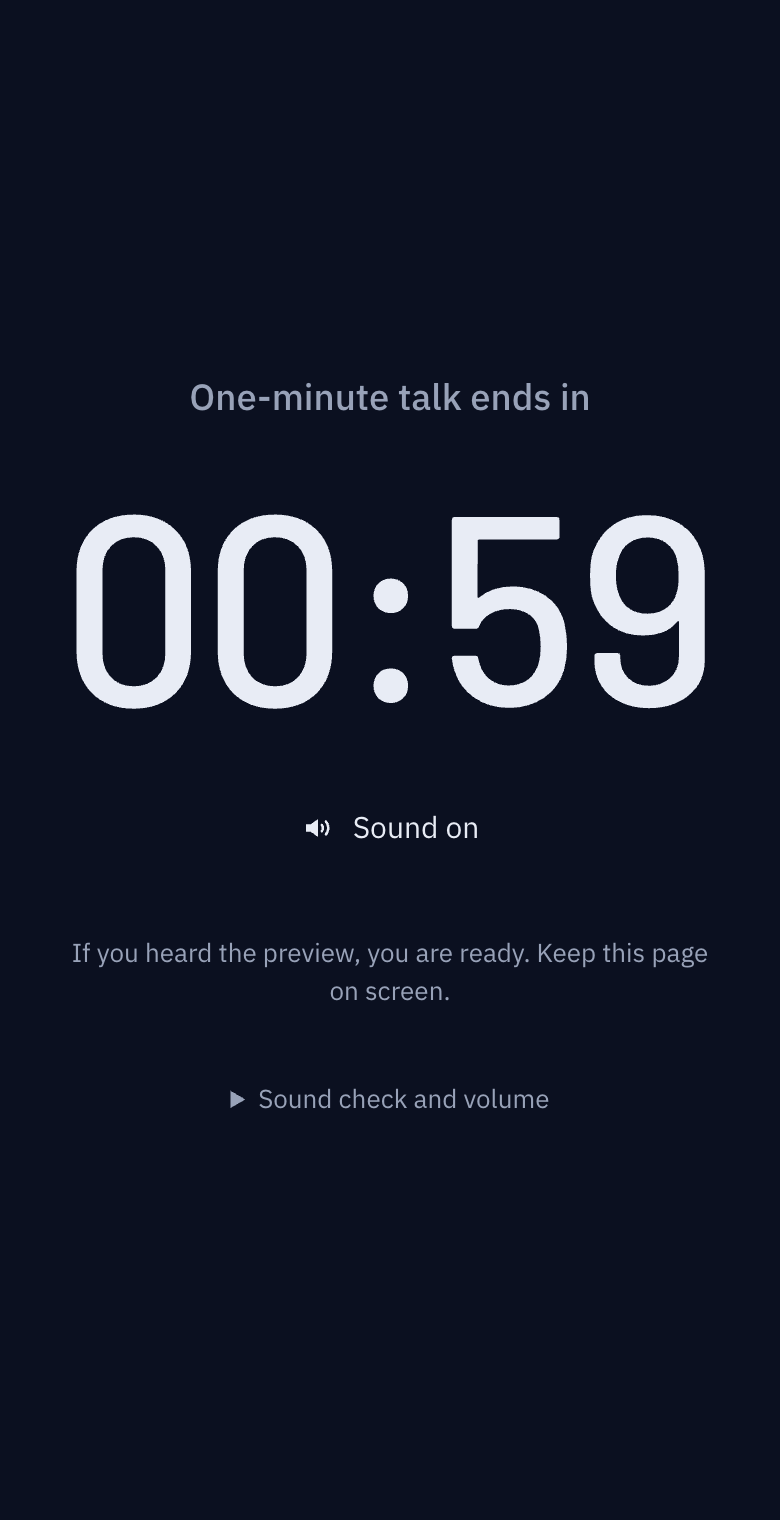
These screenshots show a closed demo room. Use the QR code and links from your own room.
I’ll make the most of the time left.
Keep the timer in view and join the activity. The facilitator can keep helping others.
Find it on the actual screen
These screenshots show a closed demo room. Use the QR code and links from your own room.
The illustrations show the situation. Expand the section below each panel to see the actual buttons and screens.
If the QR code does not open
Ask the host for the viewer link. A QR code for a closed or expired room will no longer work.
Handing out a timer to a room full of people with a QR code
Posting a link in a chat is usually enough. But when you don't have people's contact details, or you need everyone in the room to have it within thirty seconds, a QR code is the fastest way. Here is what separates a QR code that scans from one that doesn't, and how to avoid handing out the host link by accident.
When a QR code beats a link
- You don't have people's contacts: public talks, workshops, booths, parent evenings
- It has to happen right now, in this room, with no time to set up a chat group
- Typing is awkward: people standing, wearing gloves, young students
- Reading out an address is error-prone; even an 8-character code gets O and 0 mixed up out loud
If everyone is already in the same chat, a link is better. A QR code adds one more step: looking at a screen and scanning it.
What the QR code on the host screen contains
The QR code in the "Invite participants" section of the host screen is the participant link. Scanning it opens the timer screen, and it controls nothing. It is safe to put up.
Never make a QR code of the host link. The host link contains the control key, and the moment that QR code is on a screen, everyone in the room is a host. That is why, on the host screen, viewer sharing (QR code, room code, copy link) and the host link ("Copy host link") sit in separate sections. If you need to put something on the projector, put up the participant screen, not the host screen.
How big the QR code needs to be
A QR code has to grow with the scanning distance. Roughly, one side should be a tenth of the distance.
| Scanning distance | Side of the QR code |
|---|---|
| Phone in hand (30 cm) | 3 cm |
| Across a desk (1 m) | 10 cm |
| Back of a classroom (5 m) | 50 cm |
| Back of a hall (15 m) | 1.5 m |
The QR code on the host screen is sized for showing on a phone held in your hand. For a classroom or a hall, put it on the projector at a large size. Two ways:
- Open the host screen and zoom the browser (Ctrl or Cmd and +) to enlarge the QR code. The host link itself isn't displayed (only a copy button), but the control buttons are visible. Keep it up briefly and take it down.
- Make a separate QR image and put it on the first slide of your deck. Paste the participant link (
/t/code) into any free QR generator. The link holds no secret, so any generator is fine. Print it on paper and stick it by the door if you like.
When it won't scan
Too small. Use the table above. This is the most common cause.
The projector is blurry. If the dark modules bleed into each other, it won't scan. Focus the projector, and use a white background where you can. The QR code on the host screen keeps dark modules on a white background even in dark mode, because many phones can't read inverted codes.
Backlight or reflections. A TV by a window, or a printout behind glass, fails because of reflections. Change the angle or the spot.
The phone camera doesn't recognise QR codes. Older phones' stock cameras can't. Then read out the room code. It is 8 characters, and the confusable ones (I, L, O, U) are never used, so nobody has to ask "zero or the letter O?". Participants type address/t/code into the address bar.
It scanned but says "There is no room at this address". The room has expired (24 hours after the host's last action) or the code was mistyped. Make a new room, which gives a new QR code. Yesterday's printout won't work today. If you print, create the room on the morning of the event and print then.
The sequence for a large room
- Create the room on the day. Check My timers and keep a host link for switching devices.
- Make a QR image of the participant link and put it on the first and last slides. The first for people arriving, the last for latecomers.
- Stick an A4 printout of the QR code at the entrance. At 10 cm it scans from a metre away.
- Show the QR code on screen before you start and say one sentence: "Scan it and the remaining time appears on your own phone." Adding "nothing to install" gets more people to try.
- Watch the viewer count rise on the host screen, then start.
Checklist
- The QR code is of the participant link (not the host link)
- One side is a tenth of the scanning distance
- Dark modules on a white background, in focus
- The room was created today (the printed QR code is alive)
- The 8-character code is written down for people whose camera can't scan
- The host screen is never left on the projector for long
After using a shared device
Open My timers → Device storage settings on the home page to turn off saving or clear all saved host access. Access expires 24 hours after its first save by default; 1 hour and 7 days are also available. Visits do not extend retention. If the browser is closed, cleanup runs on the next visit. Increasing retention does not extend existing entries. Turn off saving on shared PCs.
Forget on this device removes only the selected room's saved access; it does not close the room. Use Close room when the event is over. Names, type icons, codes, last-used times and auto-delete times help distinguish saved rooms.